Wie behebt man den Netflix-Fehlercode M7361?

Kaum etwas ist ärgerlicher, als sich gemütlich auf einen Filmabend einzustimmen und dann von einer Fehlermeldung unterbrochen zu werden. Eines der häufigsten Probleme beim Streamen auf Netflix ist der Fehlercode M7361. Dieser Fehler tritt typischerweise bei der Verwendung eines Webbrowsers – insbesondere Google Chrome – auf und kann die Videowiedergabe komplett verhindern.
Die gute Nachricht: Der Fehlercode M7361 lässt sich in der Regel leicht beheben. In diesem Leitfaden erklären wir Ihnen, was der Netflix-Fehlercode M7361 bedeutet, warum er auftritt und zeigen Ihnen Schritt für Schritt, wie Sie schnell wieder reibungslos streamen können.
1. Was bedeutet der Netflix-Fehlercode M7361?
Der Netflix-Fehlercode M7361 (oder Fehlercode m7361-1253) ist ein Wiedergabeproblem, das hauptsächlich beim Streamen von Inhalten über einen Webbrowser auftritt. Er wird am häufigsten mit Google Chrome in Verbindung gebracht, kann aber auch in anderen Chromium-basierten Browsern auftreten.
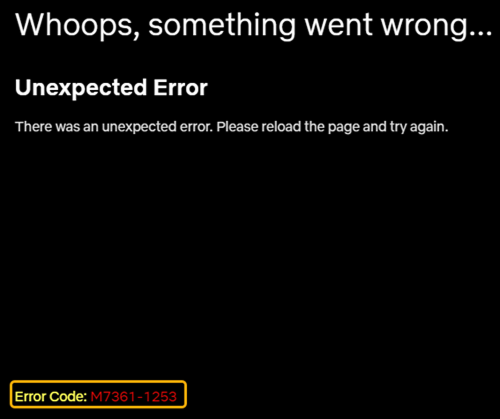
Dieser Fehler deutet in der Regel darauf hin, dass etwas die Videowiedergabe auf Netflix beeinträchtigt. Zu den häufigsten Ursachen gehören:
- Veraltete Browserversion
- Deaktivierte oder veraltete DRM-Komponenten (wie Widevine)
- Konfliktierende Browsererweiterungen
- Beschädigter Cache oder Cookies
- Hardwarebeschleunigungsprobleme
Vereinfacht gesagt, kann Netflix das Video aufgrund eines Problems in Ihrer Browserumgebung nicht überprüfen oder ordnungsgemäß laden.
2. Wie behebt man den Netflix-Fehlercode M7361?
Nachfolgend finden Sie die effektivsten Methoden zur Behebung dieses Problems. Sie müssen nicht unbedingt alle ausprobieren – beginnen Sie mit der ersten Methode und arbeiten Sie sich nach unten vor, bis das Problem gelöst ist.
2.1 Aktualisieren Sie Ihren Browser
Ein veralteter Browser ist eine der Hauptursachen für den Fehler M7361.
Schritte:
Öffnen Sie Ihren Chrome-Browser und klicken Sie auf das Dreipunkt-Menü in der oberen rechten Ecke > Gehen Sie zu Hilfe > Über Google Chrome > Erlauben Sie dem Browser, nach Updates zu suchen und eine verfügbare Version zu installieren. > Starten Sie den Browser neu.
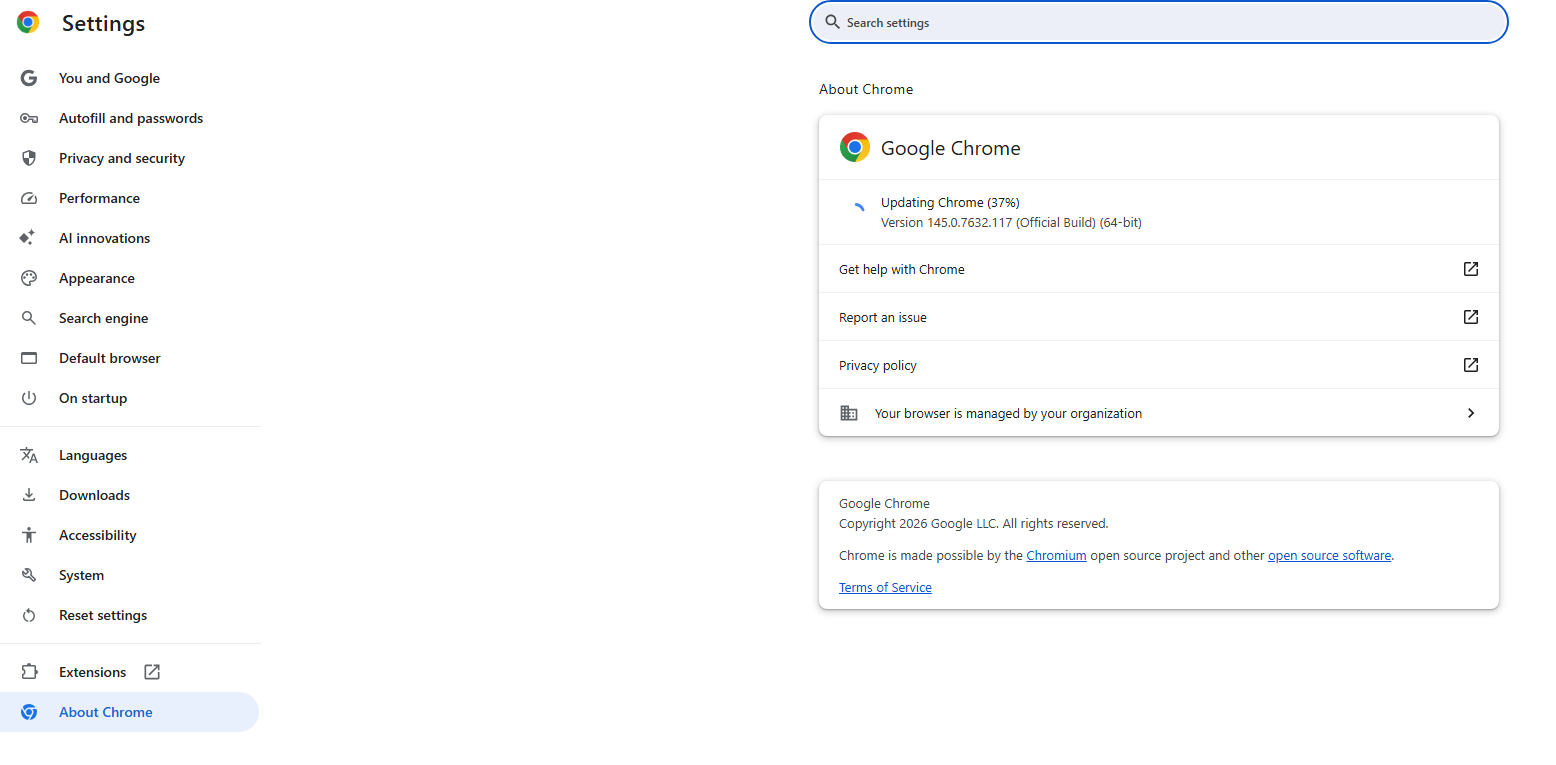
Durch die Aktualisierung Ihres Browsers wird die Kompatibilität mit den neuesten Wiedergabeanforderungen von Netflix sichergestellt.
2.2 Widevine-Inhaltsentschlüsselungsmodul aktivieren
Netflix verwendet eine DRM-Komponente namens Widevine zum Schutz und zur Übertragung von Inhalten.
Schritte zum Überprüfen von Widevine in Chrome:
- Typ
chrome://componentsin der Adressleiste - Lokalisieren Widevine Content Decryption Module
- Klicken Auf Aktualisierungen prüfen Starten Sie anschließend Ihren Browser neu.
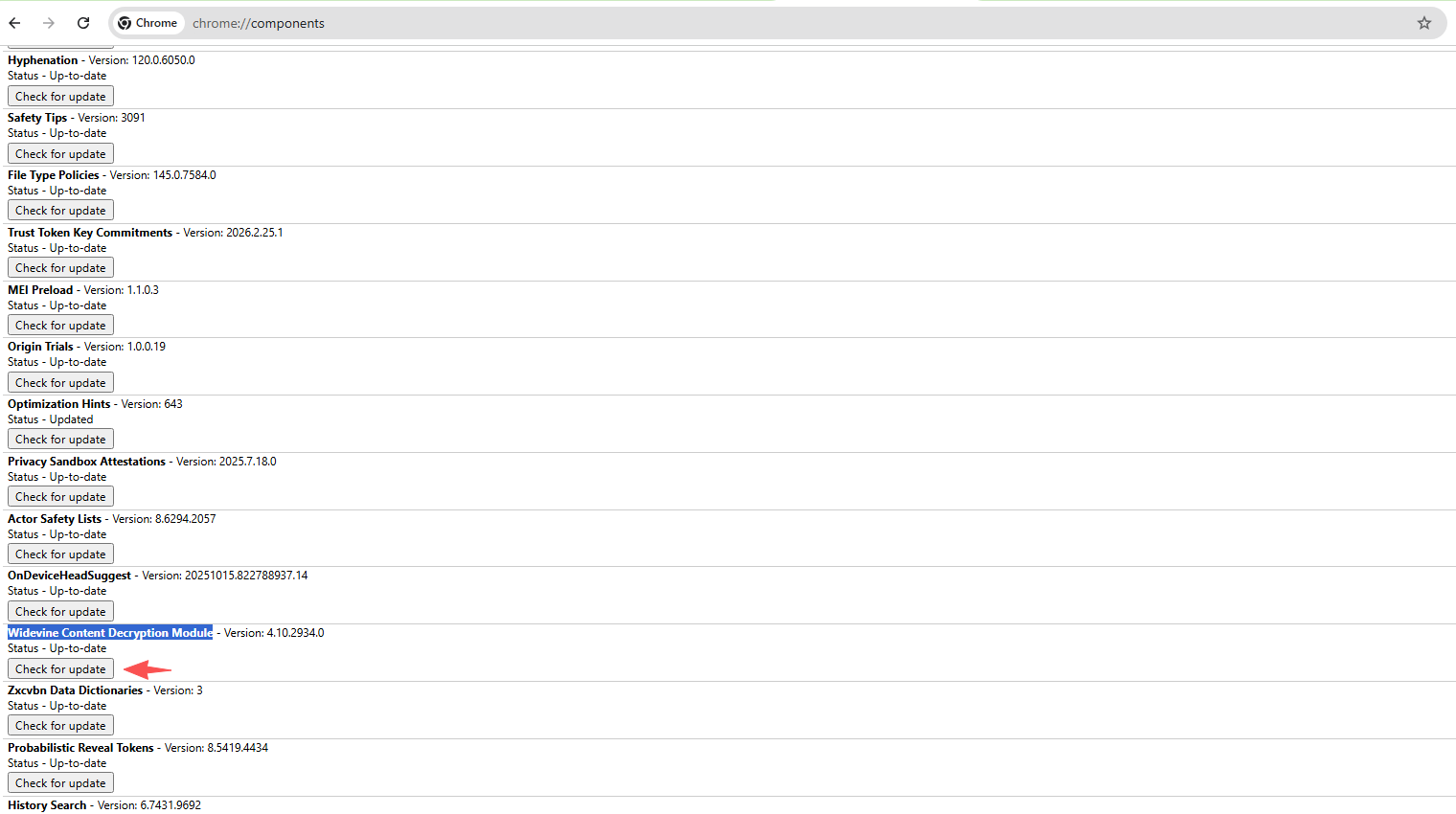
Falls Widevine fehlt oder veraltet ist, können Netflix-Videos nicht abgespielt werden.
2.3 Cache und Cookies löschen
Beschädigter Cache oder Cookies können das Streaming beeinträchtigen.
Schritte:
Öffnen Sie die Browsereinstellungen und gehen Sie zu Datenschutz und Sicherheit > Klicken Sie auf Browserdaten löschen > Auswählen: Cookies und andere Websitedaten Und Zwischengespeicherte Bilder und Dateien > Klicken Sie auf Klare Daten
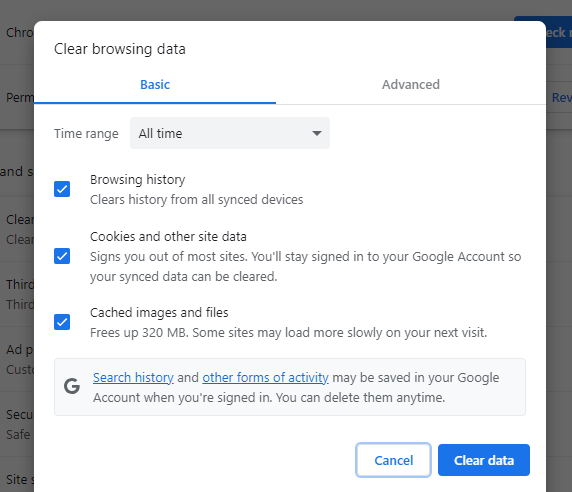
Nach dem Löschen des Fehlers melden Sie sich bitte wieder bei Netflix an und versuchen Sie es erneut.
2.4 Browsererweiterungen deaktivieren
Manche Erweiterungen – insbesondere Werbeblocker, VPNs oder Datenschutztools – können die Netflix-Wiedergabe blockieren.
Schritte:
Gehe zu
chrome://extensions/
Deaktivieren Sie alle Erweiterungen. Starten Sie Ihren Browser neu und versuchen Sie erneut, Netflix zu nutzen.
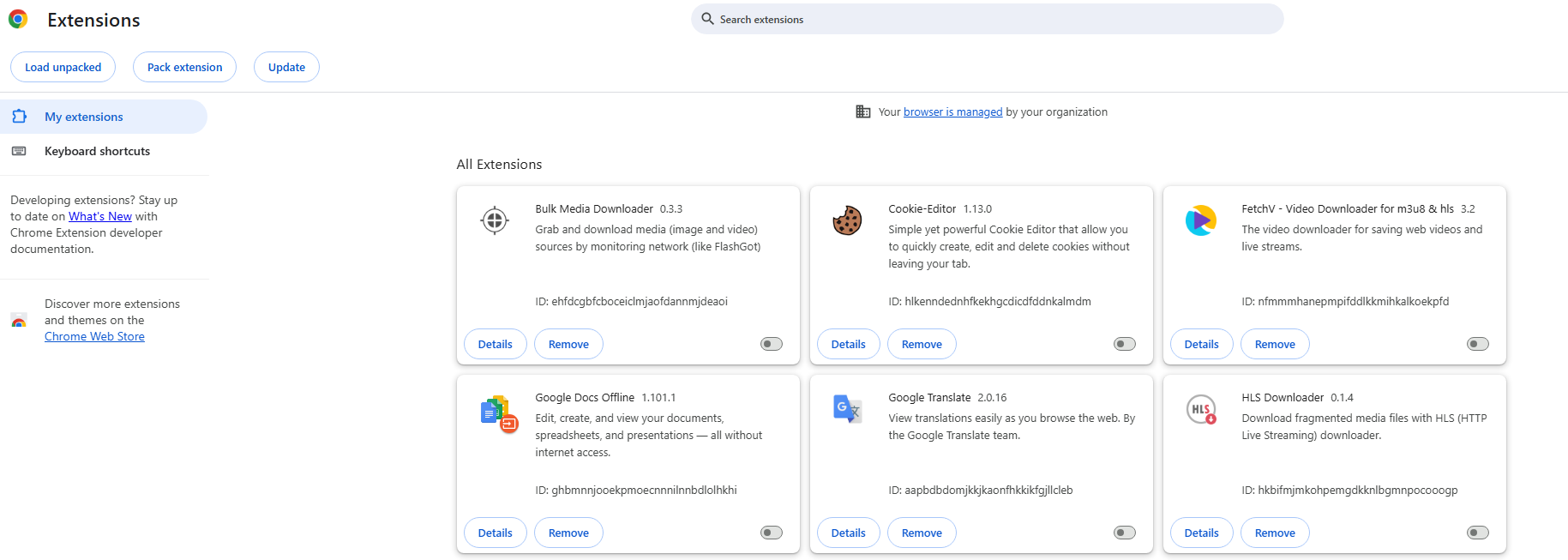
Wenn die Wiedergabe fortgesetzt wird, aktivieren Sie die Erweiterungen nacheinander, um die problematische Erweiterung zu isolieren.
2.5 Hardwarebeschleunigung deaktivieren
In einigen Fällen kann die Hardwarebeschleunigung die Videowiedergabe stören.
Schritte:
Gehen Sie zu Browsereinstellungen > Navigieren Sie zu System und ausschalten Grafikbeschleunigung verwenden, falls verfügbar Starten Sie den Browser neu.
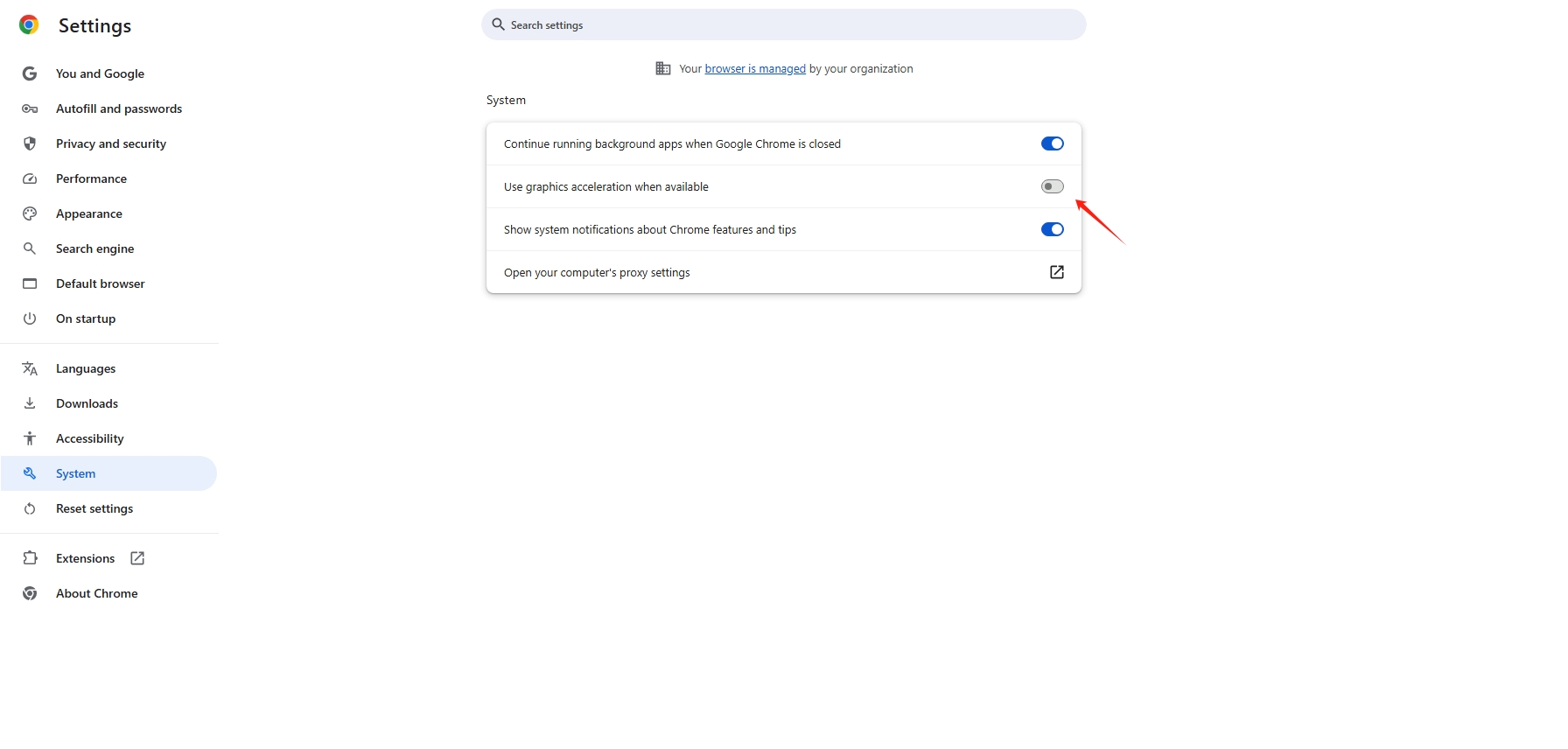
Dies kann in vielen Fällen Wiedergabestörungen beheben.
2.6 Inkognito-Modus ausprobieren
Der Inkognitomodus deaktiviert alle Erweiterungen und bietet eine ungestörte Browserumgebung.
Schritte:
- Schlag Strg + Umschalt + N (Windows) oder Cmd + Shift + N (Mac) ein neues Inkognito-Fenster öffnen.
- Öffne Netflix und versuche es mit dem Streamen.
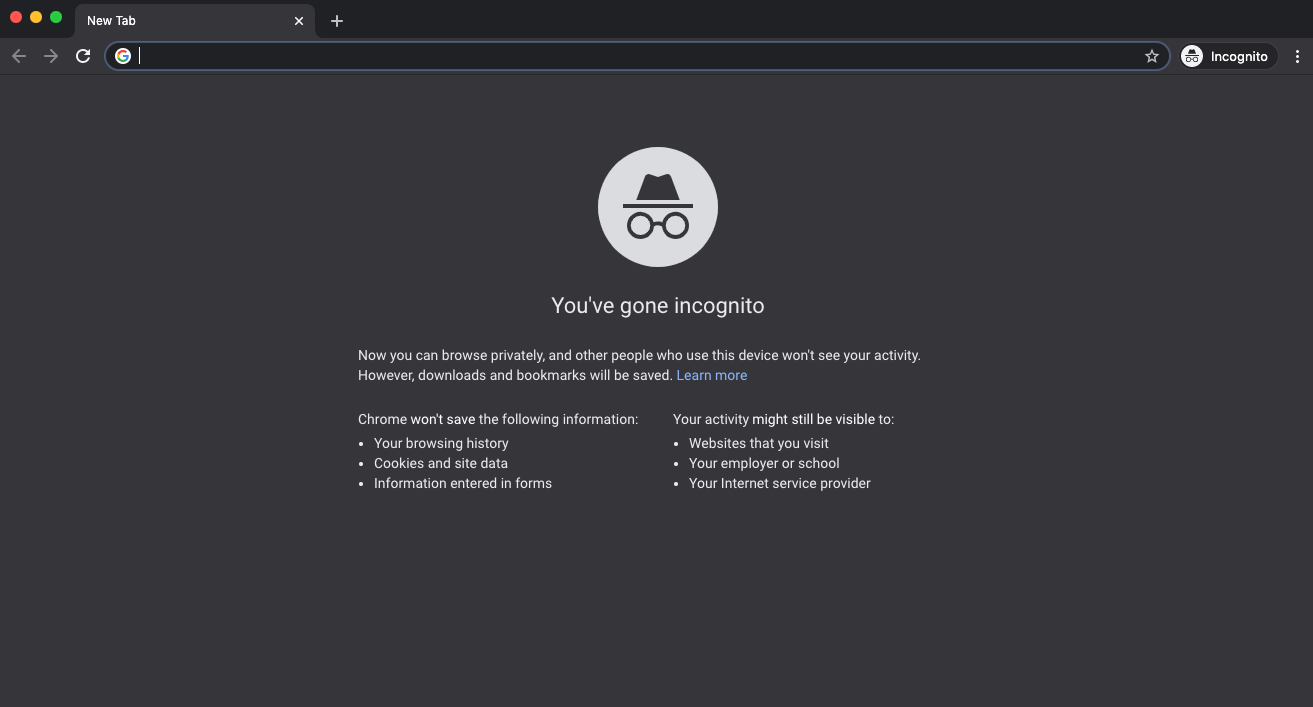
Wenn es im Inkognitomodus funktioniert, liegt das Problem wahrscheinlich an Erweiterungen oder zwischengespeicherten Daten.
2.7 Überprüfen Sie Ihre Internetverbindung
Weniger häufig, aber dennoch möglich sind instabile Internetverbindungen, die Wiedergabefehler auslösen können.
Tipps:
- Starten Sie Ihren Router neu.
- Wenn möglich, auf eine Kabelverbindung umsteigen.
- Vermeiden Sie die Verwendung von VPNs oder Proxys.
Netflix kann bestimmte IP-Adressen sperren, insbesondere wenn diese verdächtig erscheinen.
2.8 Installieren Sie Ihren Browser neu
Wenn keine der oben genannten Lösungen funktioniert, kann eine Neuinstallation Ihres Browsers tieferliegende Probleme beheben.
Schritte:
- Deinstallieren Sie Ihren Browser
- Laden Sie die neueste Version von der offiziellen Website herunter, installieren Sie sie und starten Sie sie.
- Melden Sie sich erneut bei Netflix an.
Dies gewährleistet eine absolut saubere Einrichtung.
3. Bonus: Netflix aufnehmen mit Swyshare Recordit
Manchmal wünscht man sich, selbst nach Behebung von Wiedergabeproblemen, eine flexiblere Möglichkeit, Inhalte anzusehen – insbesondere offline oder ohne Unterbrechungen. Genau da kommt die Lösung ins Spiel. Swyshare Recordit kommt herein.
Swyshare Recordit ist ein leichtgewichtiger und benutzerfreundlicher Bildschirmrekorder, mit dem Sie qualitativ hochwertige Videos direkt von Ihrem Bildschirm aufnehmen können, einschließlich der Netflix-Wiedergabe.
Warum verwenden Recordit ?
- Reibungsloser Betrieb – Netflix ohne Ruckler oder schwarzen Bildschirm aufnehmen
- HD-Aufnahme – Netflix-Videos in hoher Qualität aufnehmen
- Benutzerdefinierter Bildschirmbereich – Vollbild oder ausgewählten Bereich aufzeichnen
- System-Audioaufnahme – Originalton klar speichern
- Schneller Export – Speichern Sie Aufnahmen in gängigen MP4- oder anderen Formaten
- Ein-Klick-Steuerung – Einfaches Starten/Stoppen der Aufnahme
So nehmen Sie Netflix auf Recordit :
- Herunterladen, einrichten und starten Swyshare Recordit Mac- oder Windows-Version.
- Öffnen Sie Netflix in Ihrem Browser und verwenden Sie dann Recordit um den Aufnahmebereich auszuwählen und die Systemaudio-Funktion einzuschalten
- Spiele dein Netflix-Video ab und starte die Aufnahme.
- Beenden Sie die Aufnahme, wenn Sie fertig sind, und finden Sie die aufgenommenen Netflix-Videos im Tab „Dateien“.

4. Fazit
Netflix-Fehlercode M7361-1253 Dies ist ein häufiges Wiedergabeproblem im Browser, das in der Regel durch veraltete Komponenten, DRM-Probleme oder Konflikte mit Erweiterungen verursacht wird. Glücklicherweise lässt es sich schnell beheben, indem Sie Ihren Browser aktualisieren, Widevine aktivieren, den Cache leeren oder problematische Erweiterungen deaktivieren.
Wenn Sie ein flexibleres Seherlebnis jenseits des Streamings suchen, Swyshare Recordit ist eine hervorragende Lösung. Sie ermöglicht es Ihnen, Netflix-Inhalte reibungslos aufzunehmen und jederzeit zu genießen, ohne sich Gedanken über Fehler, Pufferung oder Internetstabilität machen zu müssen.
Für ein einfaches, effizientes und anfängerfreundliches Werkzeug, Recordit wird als zuverlässiger Begleiter für Ihr Netflix-Erlebnis wärmstens empfohlen.