Wie erstellt man eine Bildschirmaufnahme auf Android? Eine vollständige Anleitung

Die Bildschirmaufnahme auf Ihrem Android-Gerät kann in vielen Situationen nützlich sein, beispielsweise für App-Tutorials, Gameplay-Aufnahmen oder zum Speichern wichtiger Bildschirmaktivitäten. Glücklicherweise verfügen die meisten modernen Android-Geräte über eine integrierte Bildschirmaufnahmefunktion, mit der Sie Ihren Bildschirm ohne zusätzliche Software aufzeichnen können. Sie können auch separat Audio aufnehmen, falls Sie nur eine Sprach- oder Tonaufnahme benötigen. In dieser Anleitung zeigen wir Ihnen, wie Sie Bildschirm und Audio auf Android aufnehmen, und geben Ihnen einen Bonus-Tipp, wie Sie Ihren Android-Bildschirm auf einem PC aufzeichnen.
1. Wie kann man auf einem Android-Gerät eine Bildschirmaufnahme erstellen?
Am einfachsten ist es, die in Android integrierte Bildschirmaufnahmefunktion zu verwenden. Bei vielen neueren Android-Geräten kann man direkt über die Schnelleinstellungen darauf zugreifen.
Befolgen Sie diese Schritte:
- Wischen Sie vom oberen Bildschirmrand nach unten. um das Schnellzugriffsfeld zu öffnen.
- Wischen Sie gegebenenfalls erneut nach unten, um die verfügbaren Verknüpfungen zu erweitern.
- Suchen Bildschirmrekorder , Bildschirmaufnahme oder eine ähnliche Option.
- Tippe auf die Schaltfläche für die Bildschirmaufnahme.
- Wählen Sie Ihre Aufnahmeoptionen, z. B. ob Sie Geräte-Audio, Mikrofon-Audio oder Berührungssignale aufzeichnen möchten.
- Klopfen Start oder Aufnahme starten .
- Benutzen Sie Ihr Android-Telefon während der Aufnahme normal.
- Öffnen Sie nach Abschluss die Benachrichtigungsleiste und tippen Sie auf Aufnahme stoppen .
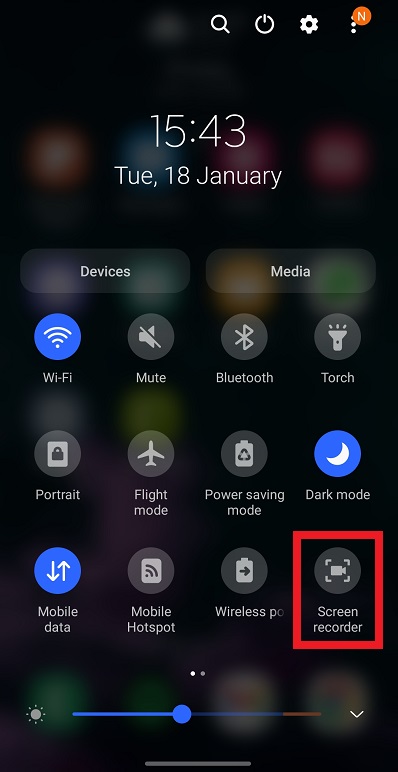
Das aufgenommene Video wird normalerweise automatisch in der Galerie, den Fotos oder einem anderen festgelegten Medienordner Ihres Telefons gespeichert.
2. Was tun, wenn die Bildschirmaufnahme nicht verfügbar ist?
Wenn Sie in den Schnelleinstellungen keine Option zur Bildschirmaufnahme sehen, verwendet Ihr Telefon möglicherweise eine andere Benutzeroberfläche oder Android-Version. Versuchen Sie, auf die entsprechende Schaltfläche zu tippen. Bearbeiten oder klicken Sie auf das Stiftsymbol in den Schnelleinstellungen, um zu sehen, ob die Schaltfläche „Bildschirmaufnahme“ hinzugefügt werden kann.
Sie können auch in den Einstellungen Ihres Telefons nachsehen und danach suchen. „Bildschirmrekorder“ oder „Bildschirmaufnahme“.
Manche Hersteller bieten eigene Bildschirmaufzeichnungstools mit zusätzlichen Optionen an. So lassen sich beispielsweise Videoauflösung, Bildrate, Tonquelle oder die Anzeige von Berührungen auswählen.
3. Wie kann ich auf Android nur Audio aufnehmen?
Wenn Sie nur den Ton und nicht den gesamten Bildschirm aufnehmen möchten, können Sie die integrierte Funktion verwenden. Recorder oder Diktiergerät Die App ist auf den meisten Android-Handys verfügbar.
- Öffnen Sie das Recorder oder Diktiergerät App auf Ihrem Android-Telefon.
- Tippen Sie auf Aufzeichnen Drücken Sie die Aufnahmetaste, um die Aufnahme zu starten, und sprechen oder nehmen Sie dann den Ton auf, den Sie speichern möchten.
- Klopfen Pause Falls Sie vorübergehend anhalten müssen; Tippen Sie auf Stoppen wenn du fertig bist.
- Benennen und speichern Sie die Aufnahme, falls Sie dazu aufgefordert werden.
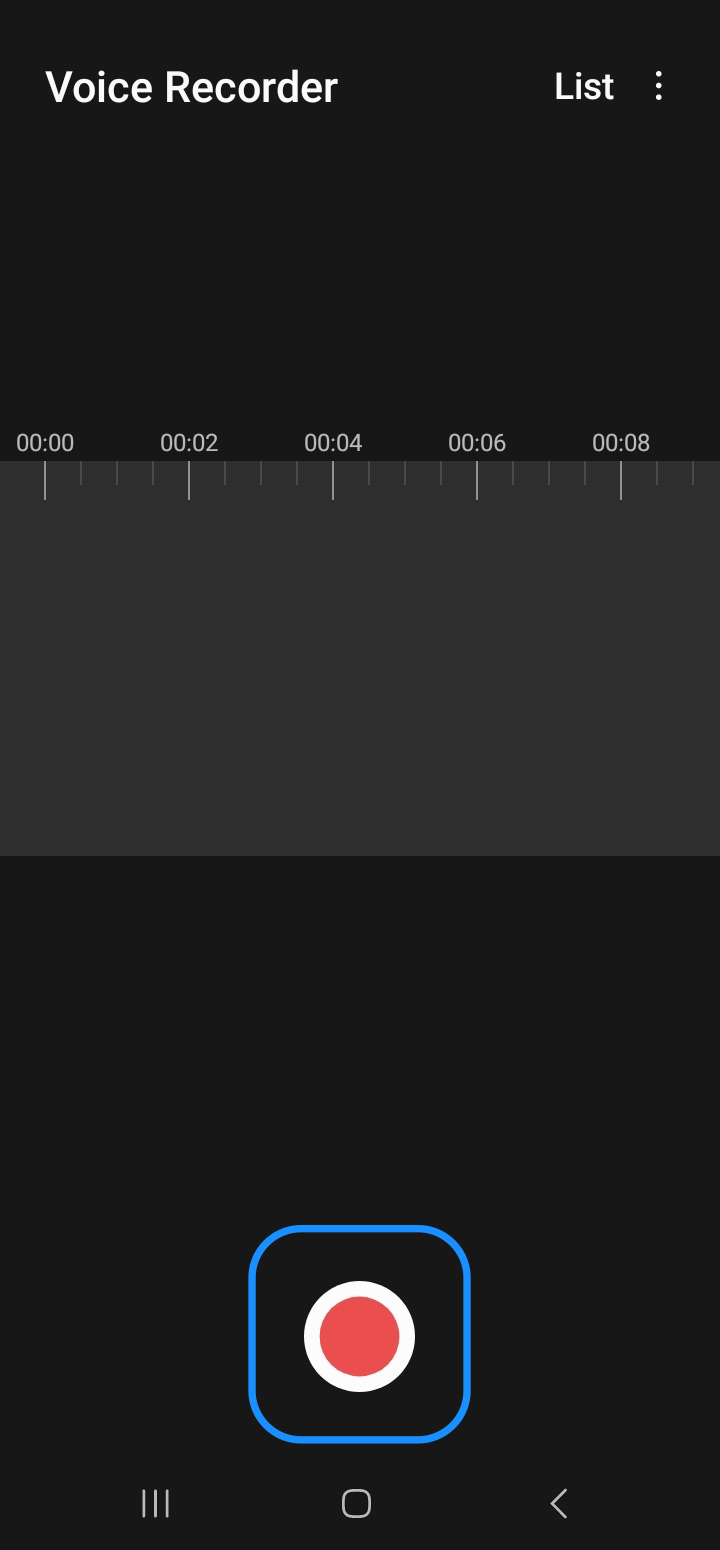
Ihre Audiodatei finden Sie normalerweise in der Recorder-App oder im Speicher Ihres Telefons. Je nach Gerät können Sie möglicherweise auch vor Beginn der Aufnahme das Aufnahmeformat oder die Audioqualität auswählen.
4. Bonus: Android-Bildschirm auf dem PC aufnehmen mit Swyshare Recordit
Die direkte Aufnahme mit einem Android-Smartphone ist zwar praktisch, ein Computer bietet jedoch eine größere Arbeitsfläche und komfortablere Steuerungsmöglichkeiten. Wenn Sie Ihren Android-Bildschirm auf einem PC aufnehmen möchten, Swyshare Recordit ist eine nützliche Option.
Recordit ist ein Bildschirmaufzeichnungstool, mit dem Sie den Bildschirm von Mobilgeräten über einen Computer aufnehmen können. Anstatt ausschließlich auf dem kleineren Display Ihres Smartphones zu arbeiten, können Sie Ihr Android-Gerät mit Ihrem PC verbinden und die Aufnahme vom Computer aus steuern.
Dies kann besonders nützlich sein beim Erstellen von Tutorials, Vorführen von mobilen Anwendungen, Aufzeichnen von Gameplay oder Vorbereiten von Lehrvideos.
Hauptmerkmale von Recordit :
- Nehmen Sie Ihren PC-, Android- oder iPhone-Bildschirm ganz einfach auf.
- Webcam-Bilder, Mikrofon-Eingangssignale und Systemaudio aufzeichnen.
- Planen Sie Aufnahmen im Voraus oder nutzen Sie die Sofortwiedergabe, um die letzten Bildschirmaktivitäten zu speichern.
- Erstellen Sie klare und flüssige Videos für Tutorials, Gameplay und Präsentationen.
- Bearbeiten Sie Ihre Aufnahmen nach der Aufnahme, indem Sie sie kürzen oder andere grundlegende Anpassungen vornehmen.
- Aufnahmen in gängigen Formaten wie MP4 ausgeben.
So nehmen Sie den Android-Bildschirm auf Recordit :
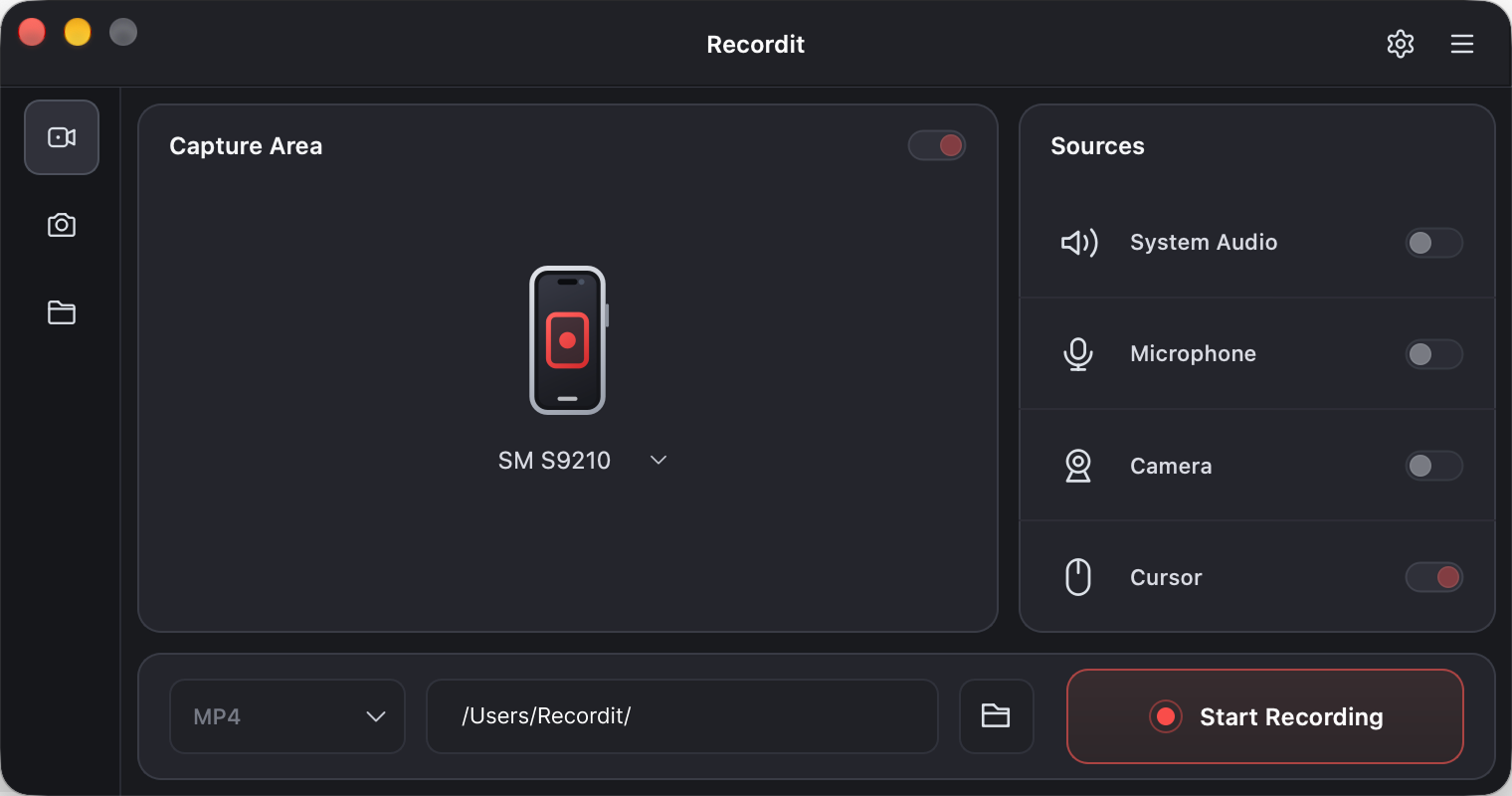
- Installieren und starten Swyshare Recordit auf Ihrem Windows- oder Mac-Computer.
- Verbinden Sie Ihr Android-Telefon mit dem Computer über ein USB-Kabel, entsperren Sie Ihr Android-Telefon und erlauben Sie gegebenenfalls die erforderliche USB-Debugging-Autorisierung.
- Sobald Ihr Gerät in der Liste erscheint Recordit Über die Benutzeroberfläche können Sie dann auf „Aufnahme starten“ klicken, um die Aufnahme Ihres Android-Bildschirms zu beginnen.
- Nutzen Sie Ihr Smartphone und führen Sie die Aktionen aus, die Sie aufzeichnen möchten.
- Wenn Sie fertig sind, klicken Sie auf „Aufnahme stoppen“ und können das aufgezeichnete Video bei Bedarf auf Ihrem Computer verwalten oder bearbeiten.
5. Schlussfolgerung
Ob Sie den Android-Bildschirm aufzeichnen, Audio aufnehmen oder mobile Aktivitäten für später speichern möchten – Android bietet einfache, integrierte Optionen für den Einstieg. Für Nutzer, die mehr Flexibilität benötigen, kann die Aufnahme des Telefons über einen Computer einen komfortableren Arbeitsablauf ermöglichen. Swyshare Recordit Unterstützt Bildschirmaufnahmen für Android, iPhone und PC sowie Webcam-, Mikrofon- und Systemaudioaufnahmen. Dank Funktionen wie Zeitplanung, Sofortwiedergabe, hochwertiger Aufnahme und Videobearbeitung ist es zudem eine nützliche Lösung zum Erstellen und Verwalten von Aufnahmen. Falls Sie ein umfassenderes Bildschirmaufnahmetool benötigen, Recordit Es ist einen Versuch wert.