Wie behebt man das Problem mit der verzögerten Audioausgabe auf dem OBS-Desktop nach der Aufnahme?

OBS Studio ist eine der weltweit am häufigsten verwendeten Anwendungen für Bildschirmaufnahmen und Live-Streaming. Es bietet leistungsstarke Aufnahmefunktionen, anpassbare Einstellungen, mehrere Audioquellen und Unterstützung für hochwertige Videoaufnahmen. Ob Gameplay, Tutorials, Webinare oder Online-Meetings – OBS ist oft die erste Wahl für Kreative und Profis.
Ein häufiges Problem, auf das viele Nutzer stoßen, ist die Audioverzögerung nach der Aufnahme. Möglicherweise bemerken Sie, dass der Ton nicht mit dem Video synchronisiert ist, Stimmen erst später zu hören sind oder der Ton im Laufe der Aufnahme allmählich asynchron wird. Dieses Problem kann Videos unprofessionell wirken lassen und ist frustrierend anzusehen.
In diesem Leitfaden erklären wir, warum der Desktop-Ton in OBS nach der Aufnahme verzögert ist und zeigen Ihnen Schritt für Schritt, wie Sie das Problem beheben können.
1. Warum ist der Ton in OBS Desktop nach der Aufnahme verzögert?
Mehrere Faktoren können dazu führen, dass die Audioausgabe auf dem OBS-Desktop nach der Aufnahme verzögert erfolgt. Hier sind die häufigsten Gründe in Kürze aufgelistet:
- Falsche Audio-Synchronisations-Offset-Einstellungen
- OBS und Windows stimmen in ihrer Abtastrate nicht überein
- Hohe CPU- oder GPU-Auslastung während der Aufnahme
- Latenz von Bluetooth-Kopfhörern oder -Lautsprechern
- Probleme mit der Zeitstempelsynchronisierung von Geräten
- Probleme bei der Aufzeichnung mit variabler Bildrate
- Veraltete Audio- oder Grafiktreiber
- Aufnahmeeinstellungen, die das System überlasten
Das Verständnis der Ursache des Problems kann Ihnen helfen, schneller die richtige Lösung anzuwenden.
2. So beheben Sie das Problem mit der verzögerten Audioausgabe in OBS Desktop nach der Aufnahme
Falls bei Ihren OBS-Aufnahmen der Desktop-Ton verzögert ist, versuchen Sie die folgenden Lösungsansätze nacheinander.
Lösung 1: Audio-Synchronisations-Offset zurücksetzen
OBS ermöglicht die manuelle Anpassung der Audioverzögerung über die Einstellung „Sync Offset“. Wird dieser Wert versehentlich geändert, kann es zu einer Verzögerung des Desktop-Audios kommen.
Schritte:
OBS Studio öffnen > Gehen Sie zu Audiomixer Klicken Sie auf das Zahnradsymbol neben Desktop-Audio > Auswählen Erweiterte Audioeigenschaften > Suchen Synchronisierungsversatz und den Wert auf 0 ms
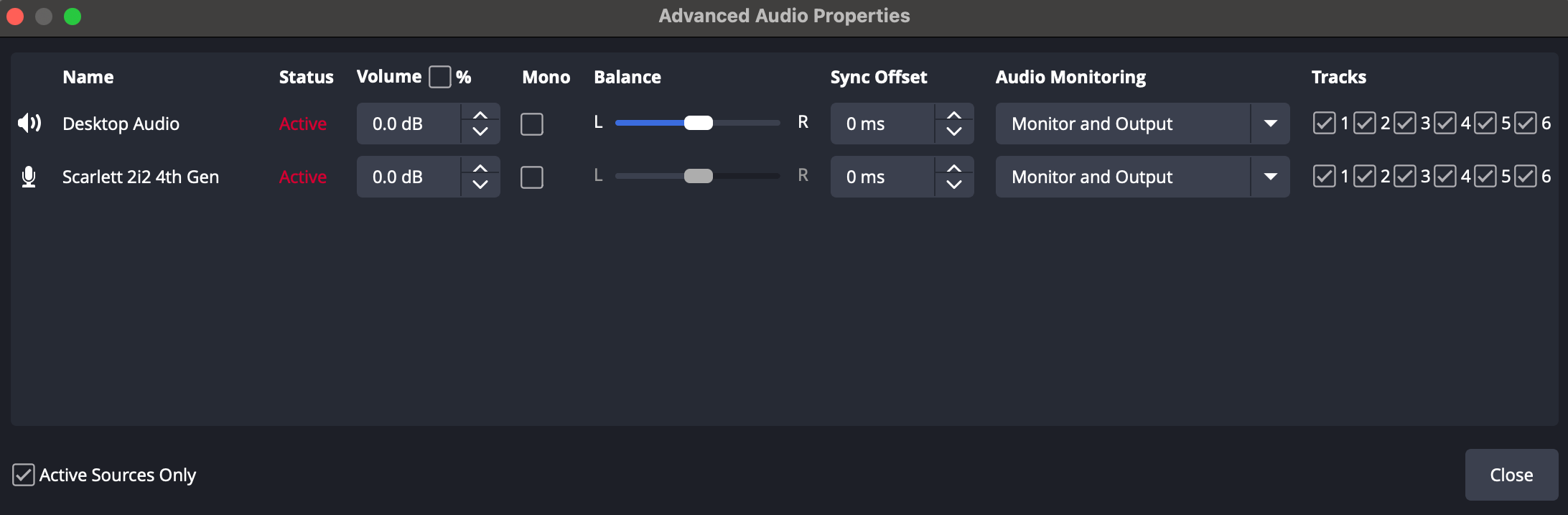
Nach dem Zurücksetzen des Offsets sollte eine kurze Testaufnahme gemacht werden, um zu überprüfen, ob das Problem behoben ist.
Lösung 2: Abtastraten anpassen
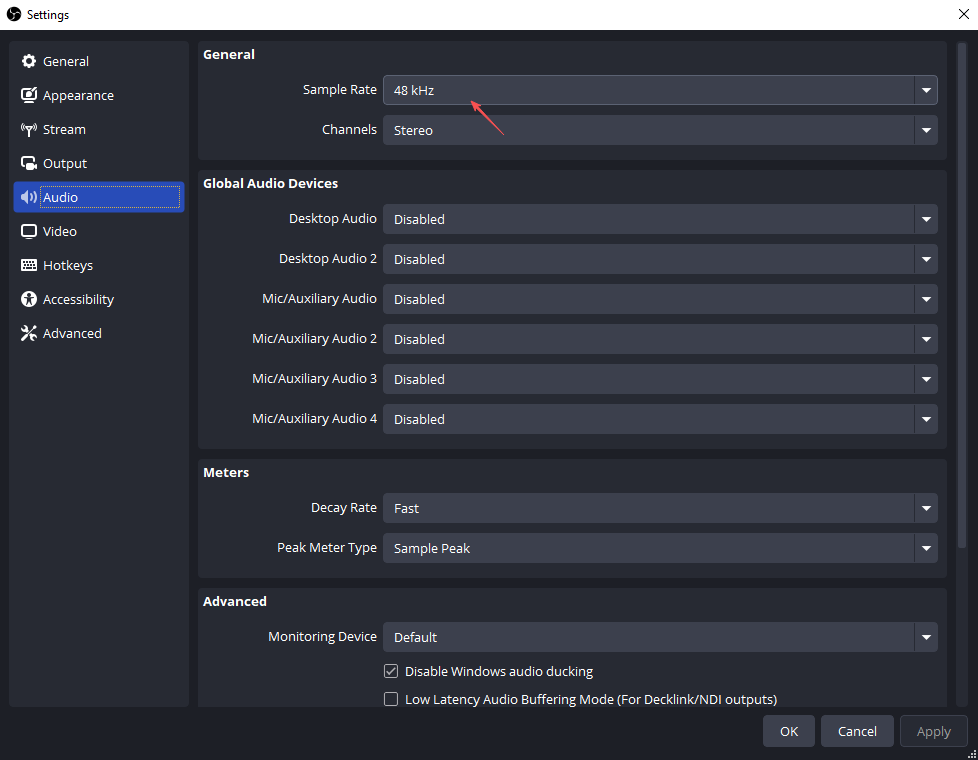
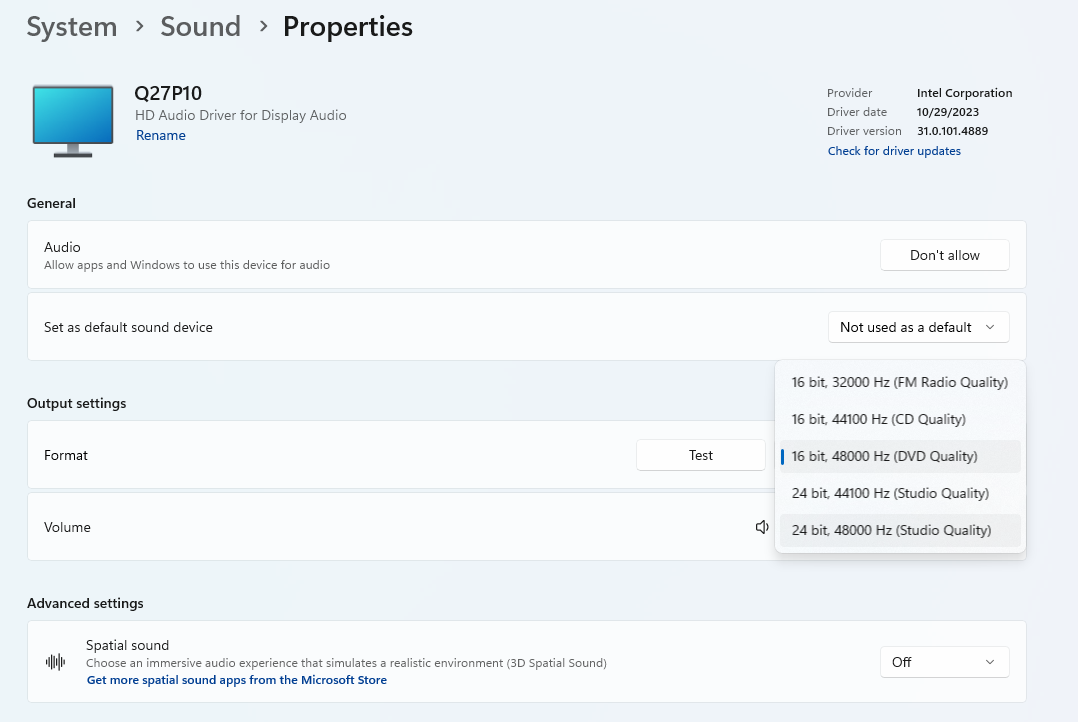
Die Verwendung unterschiedlicher Abtastraten zwischen OBS und Windows führt häufig zu Audio-Drifts im Laufe der Zeit.
- In OBS: Offen Einstellungen > Auswählen Audio > Festlegen Abtastrate Zu 48 kHz
- Unter Windows: Klicken Sie mit der rechten Maustaste auf das Lautsprechersymbol und öffnen Sie es. Toneinstellungen Wählen Sie Ihr Wiedergabegerät aus und öffnen Sie es. Eigenschaften und wählen Sie 48.000 Hz
Starten Sie OBS nach der Anwendung der Änderungen neu.
Lösung 3: Deaktivieren Sie „Gerätezeitstempel verwenden“
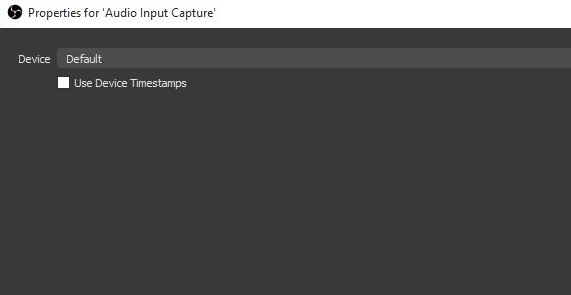
Diese OBS-Funktion kann je nach Hardware oder Audiotreibern manchmal Synchronisationsprobleme verursachen.
Schritte:
OBS öffnen > Suchen Audioeingabeerfassung und geh zu Eigenschaften > Häkchen entfernen Gerätezeitstempel verwenden unter dem Abschnitt „Gerät“
Starten Sie OBS neu und versuchen Sie es mit einer weiteren Aufnahme.
Lösung 4: Reduzierte OBS-Ressourcennutzung
Wenn Ihr Computer während der Aufnahme überlastet ist, kann es zu Bildaussetzern im Video kommen, während die Audioaufnahme normal weiterläuft.
Reduzieren Sie die Systemlast durch:
- Verringern der Aufnahmeauflösung
- Reduzierung der Bildrate von 60 auf 30
- Nicht notwendige Anträge schließen
- Verwendung von Hardware-Codierung wie NVENC
Sie können außerdem die OBS-Statistiken für Folgendes überwachen:
- Rendering-Ebene
- Kodierungsverzögerung
- Frameverluste
Hohe Werte deuten in der Regel auf eine Hardwareüberlastung hin.
Lösung 5: Vermeiden Sie Bluetooth-Audiogeräte
Bluetooth-Geräte verursachen naturgemäß Latenz, da drahtlose Audioübertragung eine zusätzliche Verarbeitung erfordert.
Um Verzögerungen zu reduzieren:
- Verwenden Sie kabelgebundene Kopfhörer oder Lautsprecher.
- Audio direkt vom Desktop-Ausgang aufnehmen
Falls Bluetooth-Geräte erforderlich sind, müssen Sie möglicherweise den Synchronisierungs-Offset manuell anpassen.
Lösung 6: Aufnahme im MKV-Format statt im MP4-Format
Das direkte Aufnehmen im MP4-Format kann mitunter zu instabilen Dateien führen.
OBS empfiehlt, zunächst im MKV-Format aufzunehmen.
Schritte:
Offen Einstellungen und geh zu Ausgabe > Aufnahmeformat einstellen auf MKV Nach der Aufnahme: Öffnen Datei > Remux-Aufnahmen und konvertieren Sie die Datei in MP4

Diese Methode verbessert häufig die Aufnahmestabilität und die Synchronisation.
Lösung 7: Aktualisieren Sie die Audio- und Grafiktreiber
Veraltete Treiber können Kompatibilitäts- und Timingprobleme verursachen.
Aktualisieren:
- Audiotreiber
- GPU-Treiber
- USB-Audiogerätetreiber
Starten Sie Ihren Computer nach der Installation der Updates neu.
3. Probieren Sie den einfachen, aber dennoch leistungsstarken Bildschirmrekorder aus – Swyshare Recordit
OBS bietet zwar erweiterte Aufnahmefunktionen, doch viele Nutzer empfinden die Einstellungen als überfordernd, insbesondere bei der Behebung von Audio-Synchronisationsproblemen. Wenn Sie eine einfachere Aufnahme mit zuverlässiger Bildschirm- und Audioaufzeichnung wünschen, Swyshare Recordit ist eine großartige Alternative.
Hauptmerkmale von Recordit :
- Nehmen Sie Ihren gesamten Bildschirm, ausgewählte Fenster oder benutzerdefinierte Bereiche in hoher Qualität auf.
- Desktop-Sound reibungslos und mit weniger Synchronisationsproblemen aufnehmen.
- Automatisches Starten und Stoppen von Aufnahmen zu festgelegten Zeiten.
- Speichern Sie Aufnahmen in gängigen Formaten, die für verschiedene Plattformen geeignet sind.
- Fügen Sie während der Aufnahmesitzungen Text, Zeichnungen und Markierungen hinzu.
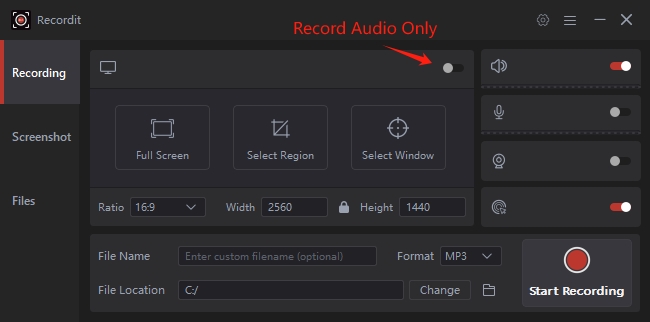
Anwendung Recordit Desktop-Audio aufnehmen:
- Herunterladen, installieren und starten Recordit auf Ihrem Windows- oder Mac-Computer.
- Aktivieren Sie den Modus „Nur Audio“, legen Sie dann das Ausgabeformat und den Speicherort fest.
- Klicken Sie hier, um die Aufnahme von Desktop-Audio zu starten; spielen Sie das Video, die Musik, die Besprechung oder andere Audiodateien ab, die Sie aufnehmen möchten.
- Wenn Sie mit der Aufnahme fertig sind, beenden Sie diese und finden Sie sie anschließend unter dem Reiter „Dateien“.
4. Fazit
Eine verzögerte Audioausgabe in OBS Desktop nach der Aufnahme ist ein häufiges Problem, das durch Synchronisierungseinstellungen, unterschiedliche Abtastraten, Bluetooth-Latenz, Hardwareüberlastung und andere Konfigurationsprobleme verursacht wird. Glücklicherweise lassen sich diese Probleme in der Regel durch Anpassen der OBS-Einstellungen, Angleichen der Abtastraten, Reduzieren der Systemlast und Aktualisieren der Treiber beheben.
Wenn Sie jedoch eine einfachere und stabilere Aufnahmelösung bevorzugen, ohne Zeit mit der Fehlersuche in erweiterten Einstellungen zu verbringen, Swyshare Recordit wird wärmstens empfohlen. Dank seiner geringen Leistung, der benutzerfreundlichen Oberfläche, der stabilen Desktop-Audioaufnahme und der leistungsstarken Aufnahmefunktionen ist es eine hervorragende Alternative für die Erstellung flüssiger Videos in professioneller Qualität mit minimalem Aufwand.