Wie speichere ich eine Webseite als JPEG?

Es gibt viele Gründe, warum man eine Webseite als JPEG-Bild speichern möchte. Studierende sichern sich häufig Online-Artikel für ihre Recherchen, Designer speichern Webseiten-Inspirationen zur Offline-Ansicht und Unternehmen archivieren Landingpages oder Produktlisten zur Dokumentation. Im Vergleich zu Lesezeichen oder HTML-Dateien lassen sich JPEG-Bilder einfach teilen, hochladen, drucken und auf nahezu jedem Gerät speichern.
Das Speichern einer Webseite als JPEG trägt dazu bei, das visuelle Erscheinungsbild der Seite exakt so zu erhalten, wie es zu einem bestimmten Zeitpunkt aussah. Dies ist besonders nützlich für Webseiten, die sich häufig ändern, wie beispielsweise Nachrichtenseiten, Social-Media-Beiträge, Online-Shops oder Werbeseiten.
In diesem Leitfaden erklären wir die effektivsten Methoden, um eine Webseite als JPEG-Bild zu speichern, und stellen eine einfachere Möglichkeit vor, Webseiten genau so zu archivieren, wie sie angezeigt werden.
1. Wie speichere ich eine Webseite als JPEG?
Methode 1: Einen Screenshot der Webseite erstellen
Eine der schnellsten Möglichkeiten, eine Webseite in ein JPEG-Bild umzuwandeln, ist das Erstellen eines Screenshots.
Unter Windows :
- Öffnen Sie die Webseite, die Sie speichern möchten.
- Drücken: Win + Shift + S und wählen Sie den Bereich der Webseite aus, den Sie aufnehmen möchten.
- Öffnen Sie das aus der Benachrichtigung aufgenommene Bild und speichern Sie es als JPG/JPEG-Datei.
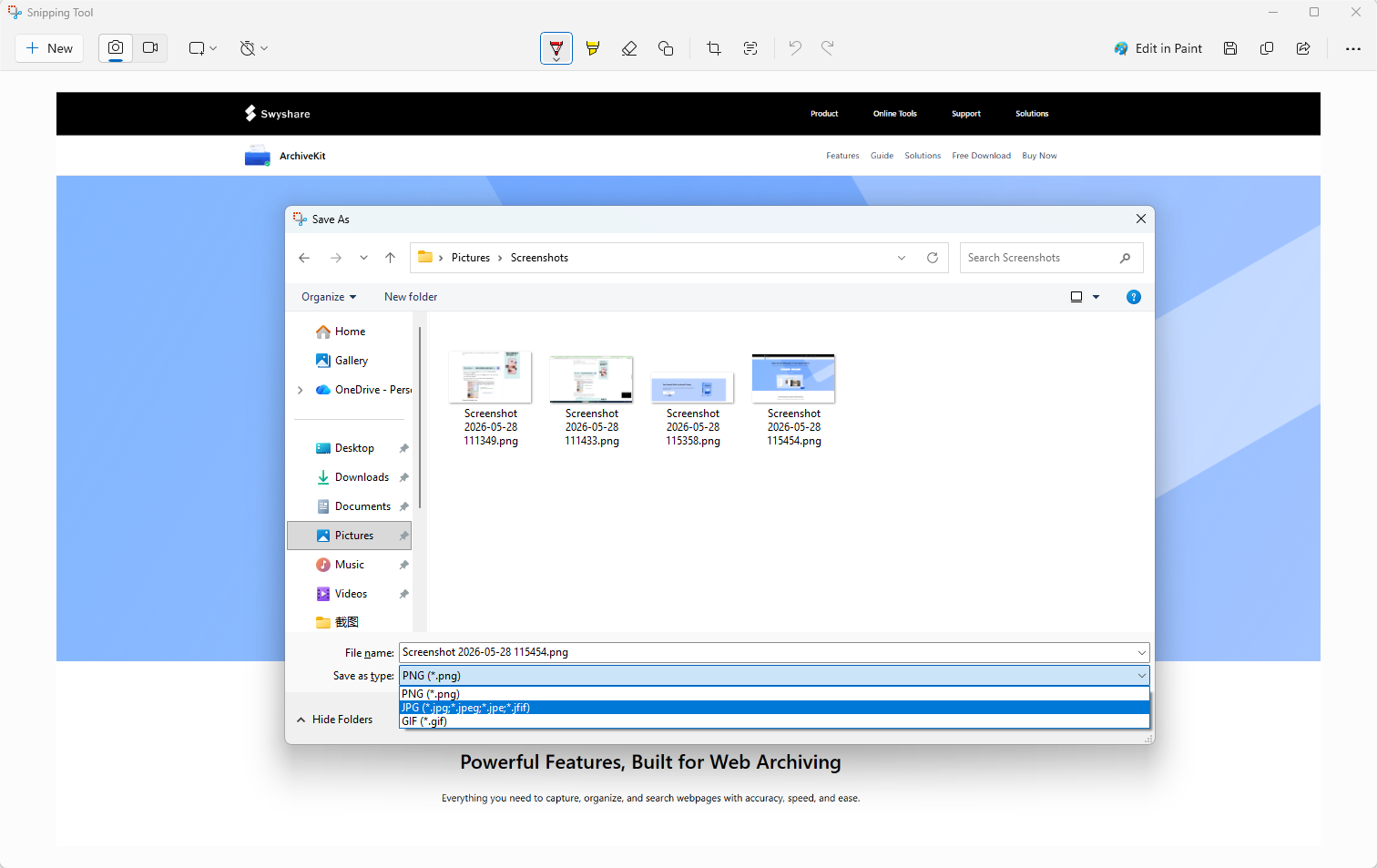
Sie können den Screenshot in ein JPEG-Format konvertieren, indem Sie ihn in Microsoft Paint einfügen und die entsprechende Option auswählen. Speichern unter > JPEG-Bild .
Auf dem Mac :
- Öffne die Webseite.
- Drücken:
- Umschalt + Befehl + 4
- Wählen Sie den Aufnahmebereich aus.
- Der aufgenommene Screenshot wird automatisch als PNG-Datei gespeichert.
- Öffnen Sie die Datei in der Vorschau und exportieren Sie sie als JPEG:
- Datei > Exportieren > JPEG
Diese Methode ist einfach und schnell, erfasst aber nur den sichtbaren Teil der Webseite, es sei denn, man scrollt und macht mehrere Screenshots.
Methode 2: Verwenden Sie das Screenshot-Tool für die gesamte Seite in Chrome oder Edge.
Moderne Browser wie Google Chrome und Microsoft Edge verfügen über integrierte Tools zum Aufzeichnen ganzer Webseiten.
Vorgehensweise :
- Öffnen Sie die Webseite und drücken Sie dann F12 oder Strg + Umschalt + I
- Drücken
Strg + Umschalt + P
> Typ:
screenshot> Auswählen: Screenshot in voller Größe aufnehmen
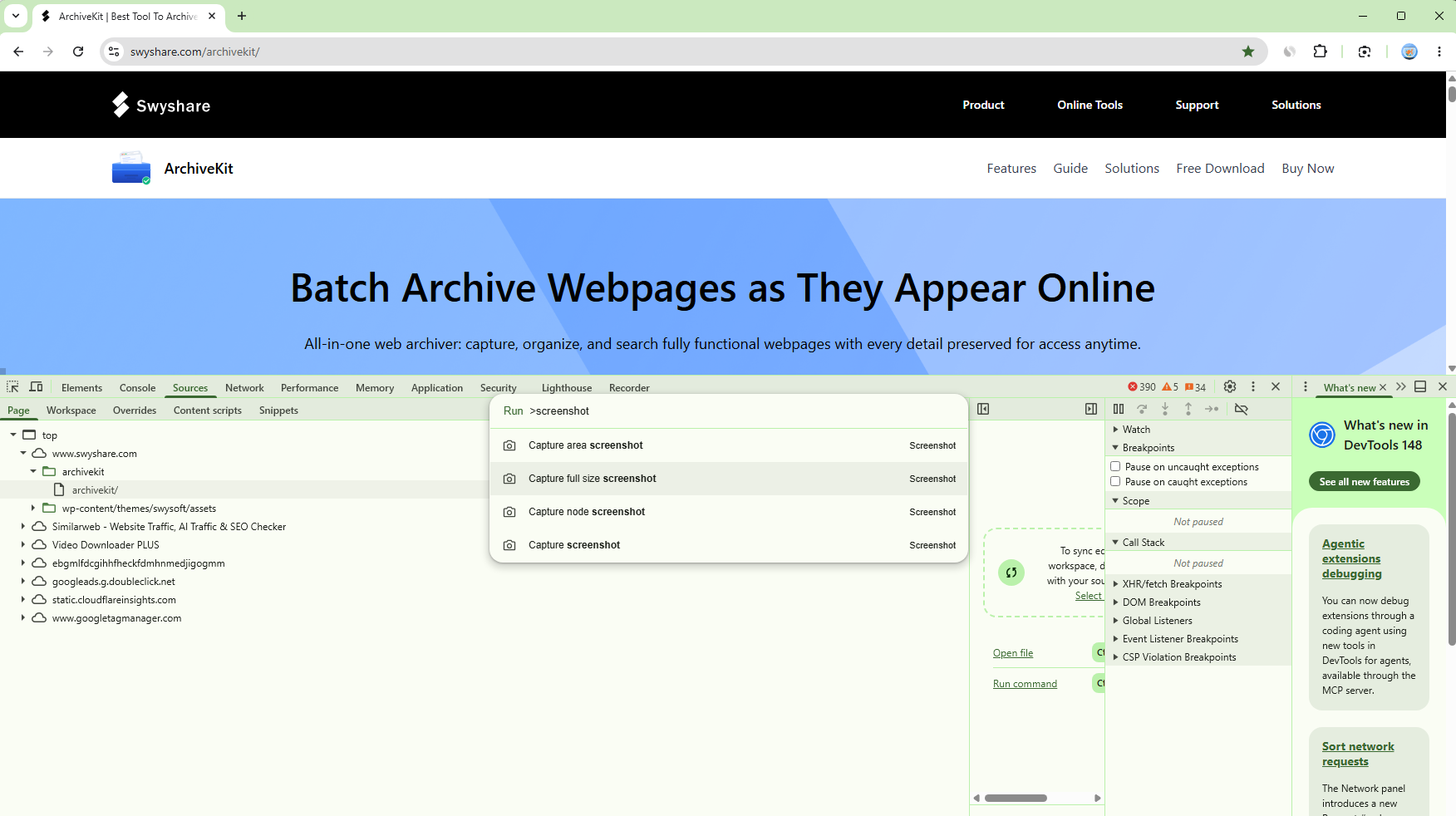
Der Browser erfasst automatisch die gesamte scrollende Webseite.
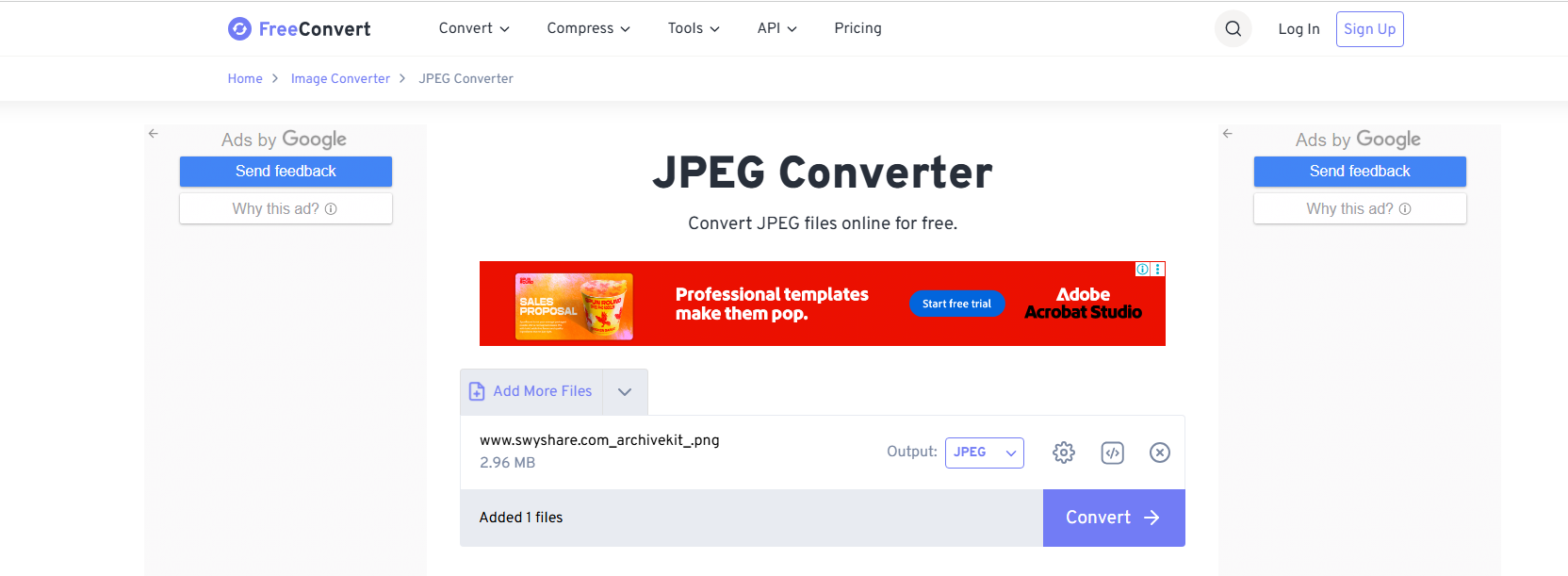
Die meisten Browser speichern Screenshots ganzer Seiten standardmäßig im PNG-Format, aber Sie können das PNG-Bild ganz einfach in JPEG konvertieren mit
- Malen
- Vorschau
- Photoshop
- Online-Bildkonverter
Diese Methode eignet sich gut zum Speichern langer Artikel, Anleitungen und Dokumentationsseiten.
Methode 3: Webseite als PDF speichern und anschließend in JPEG konvertieren
Eine weitere gängige Methode ist, die Webseite zuerst als PDF zu speichern.
Vorgehensweise :
- Öffnen Sie die Webseite und drücken Sie: Strg + P (Windows) oder Befehl + P (Mac)
- Wählen Als PDF speichern Wählen Sie im Druckmenü die Option zum Speichern der PDF-Datei.
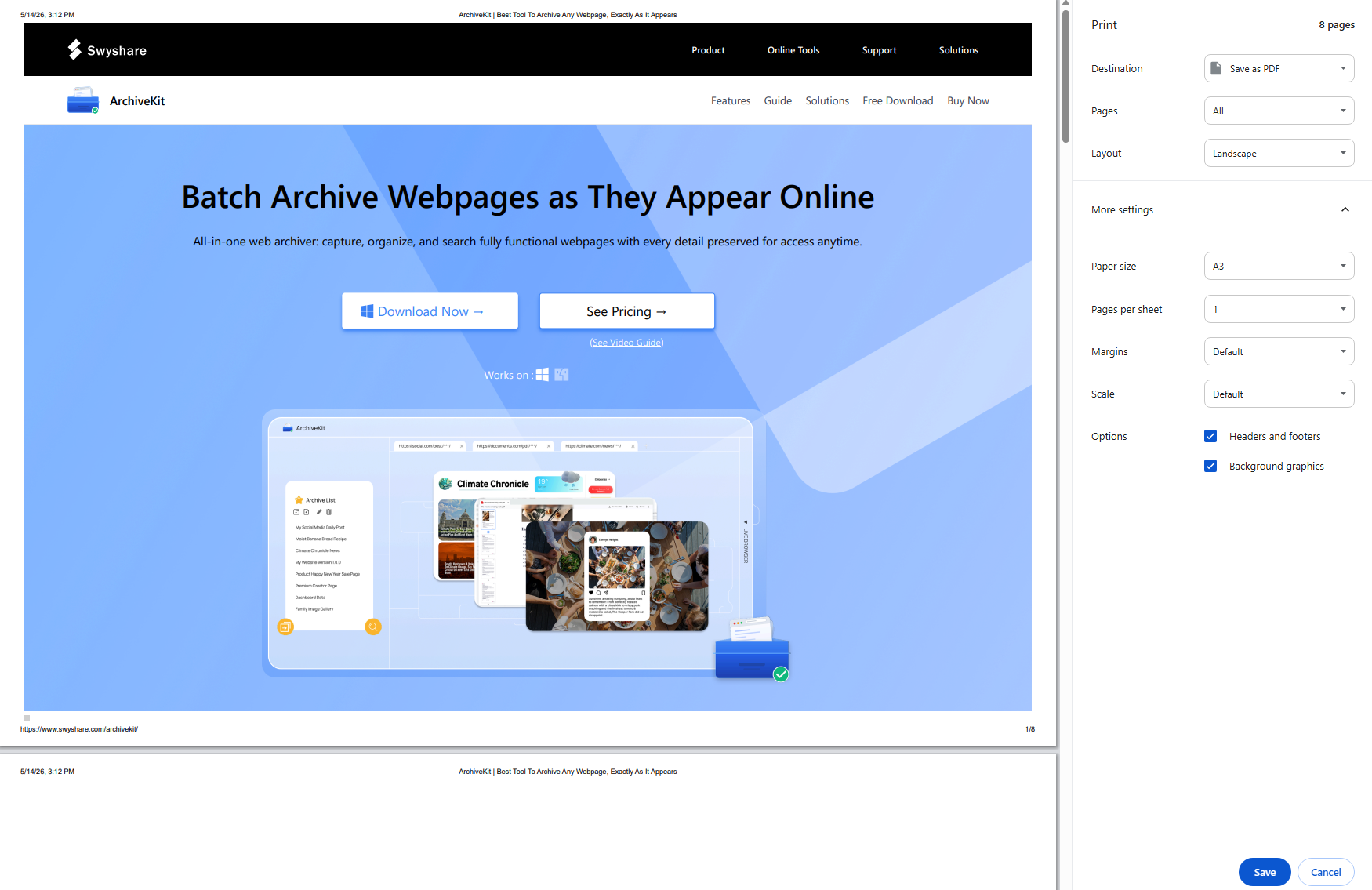
- Konvertieren Sie die PDF-Datei in JPEG-Bilder mit folgendem Tool:
- Adobe Acrobat
- Vorschau
- Online-PDF-Konverter
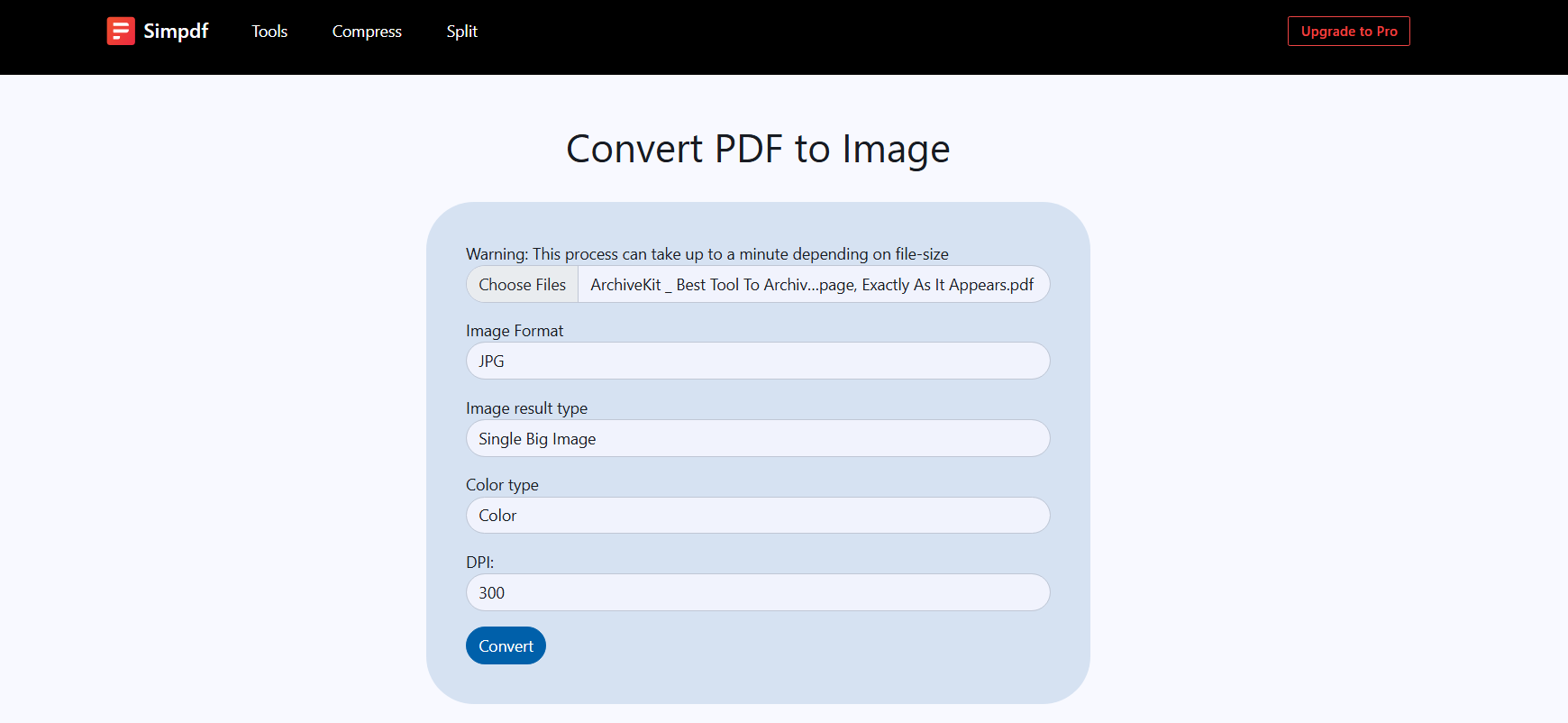
Diese Methode eignet sich gut für Webseiten mit viel Text, da PDFs die Formatierung oft genauer beibehalten.
Allerdings werden manche dynamische Elemente wie Videos oder Animationen möglicherweise nicht korrekt angezeigt.
Methode 4: Browsererweiterungen verwenden
Durch die Verwendung von Browsererweiterungen kann die Umwandlung von Webseiten in JPEG-Dateien schneller und bequemer gestaltet werden.
Zu den beliebtesten Erweiterungen gehören:
- GoFullPage
- Feuerschuss
- Toller Screenshot
Schritte:
- Installieren Sie eine Browsererweiterung wie GoFullPage und öffnen Sie anschließend die Einstellungen, um JPEG als Ausgabeformat festzulegen.
- Öffnen Sie die Webseite und klicken Sie auf das GoFullPage-Erweiterungssymbol.
- GoFullPage scrollt die Seite und exportiert das Ergebnis als JPEG.
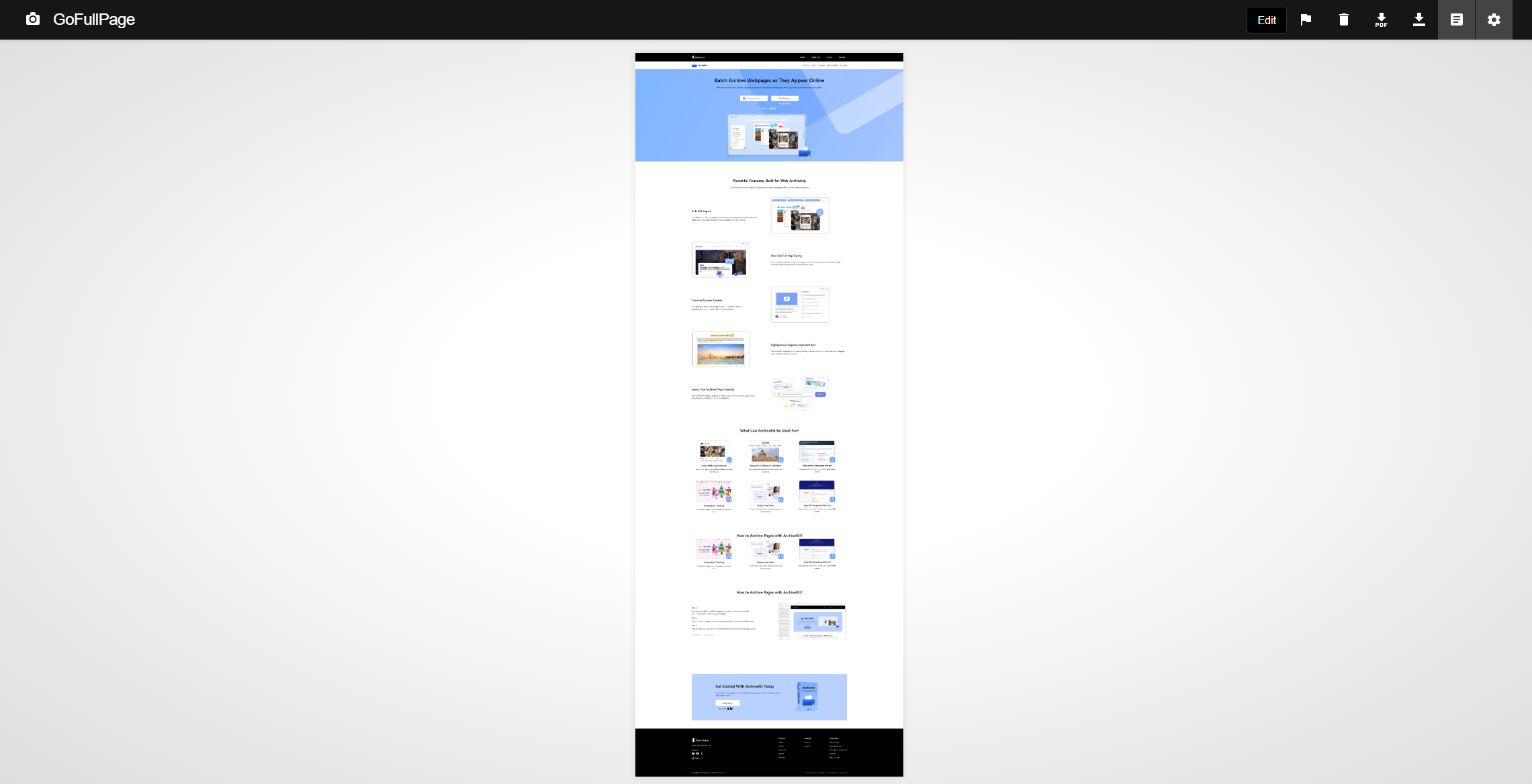
Diese Erweiterungen bieten in der Regel zusätzliche Funktionen wie:
- Annotationswerkzeuge
- Scrollende Aufnahme
- Stapelverarbeitung
- Direkte Freigabe
Diese Tools sind praktisch für Personen, die regelmäßig Online-Inhalte speichern und Webseitenverweise erfassen.
2. Häufige Probleme beim Speichern von Webseiten als JPEG
Obwohl Screenshots einfach sind, stoßen Benutzer beim Versuch, Webseiten korrekt zu speichern, häufig auf verschiedene Probleme.
- Unvollständige Aufnahmen: Manche Webseiten sind zu lang für normale Screenshots, daher sind mehrere Aufnahmen erforderlich.
- Fehlende Bilder: Bei verzögert geladenen Bildern oder dynamischen Inhalten werden diese möglicherweise nicht korrekt angezeigt.
- Layoutprobleme: Pop-ups, fixierte Banner und animierte Elemente können die Genauigkeit von Webseiten-Screenshots beeinträchtigen.
- Schwierige Organisation: Die manuelle Verwaltung hunderter Screenshots kann mit der Zeit unübersichtlich werden.
Hier erweisen sich Webseitenarchivierungstools als besonders nützlich.
3. Webseiten so archivieren, wie sie sind Swyshare ArchiveKit
Swyshare ArchiveKit ist ein Webseitenarchivierungstool, das Benutzern dabei helfen soll, Webseiten für den Offline-Zugriff und als langfristige Referenz zu erhalten.
Im Gegensatz zu Screenshot-Tools, die lediglich Bilder aufnehmen, konzentriert sich ArchiveKit darauf, Webseiten als vollständige Archive zu erhalten und dabei deren Erscheinungsbild und Struktur zu bewahren.
ArchiveKit hilft Benutzern:
- Stapelweises Archivieren von Webseiten lokal für späteren Zugriff
- Webseitenlayouts und -inhalte beibehalten
- Wichtige Texte in archivierten Webseiten hervorheben
- Archivierte Webseiten effizient organisieren und finden
So archivieren Sie Webseiten mit ArchiveKit:
- Herunterladen und einrichten Swyshare ArchiveKit, öffnen Sie es dann auf Ihrem Computer.
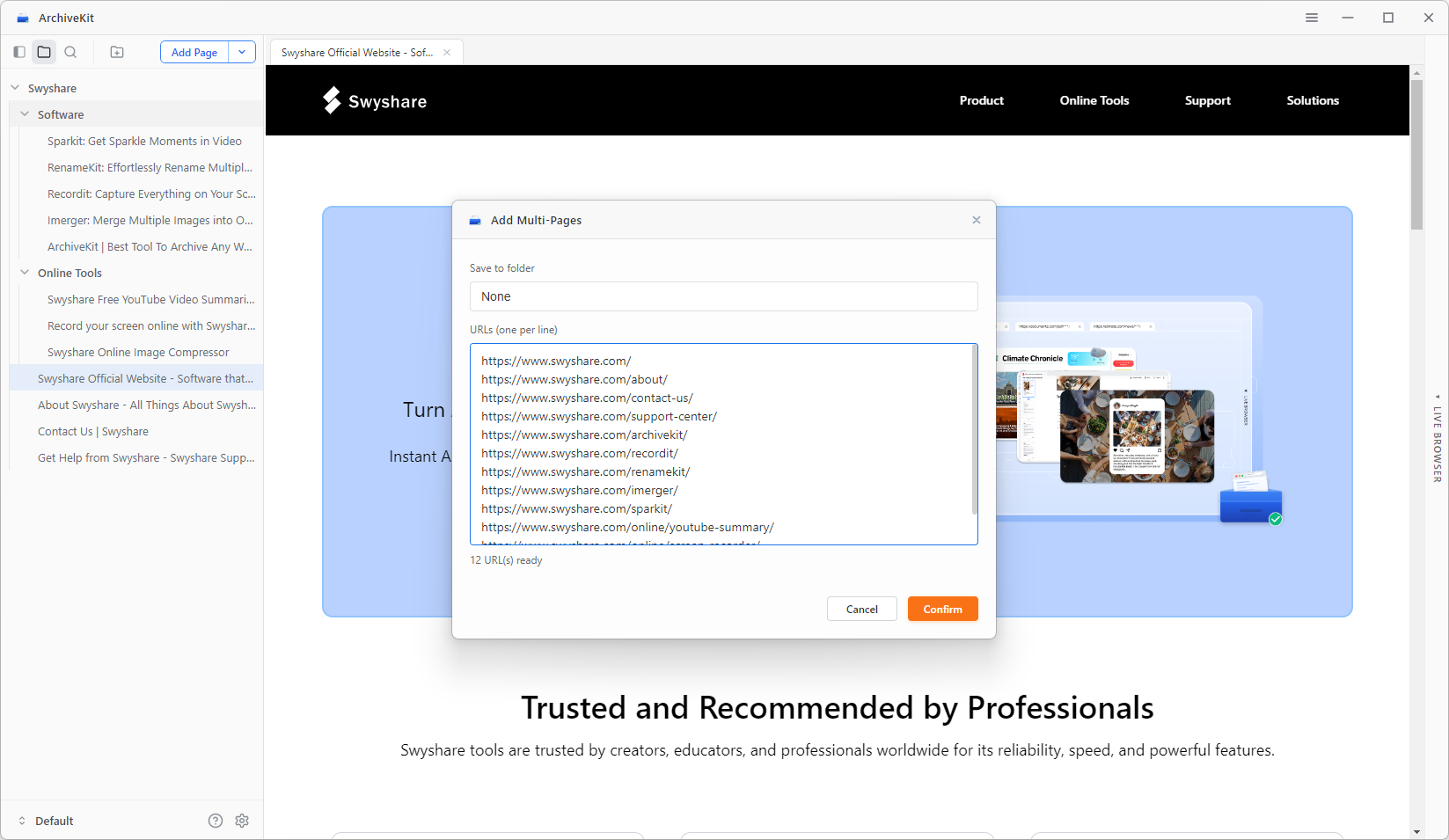
- Kopieren Sie die URLs der Webseiten, die Sie erhalten möchten, und fügen Sie sie in ArchiveKit ein.
- Lassen Sie die Webseiten vollständig laden, damit alle Texte, Bilder und dynamischen Elemente korrekt angezeigt werden, und lassen Sie ArchiveKit sie dann für den Offline-Zugriff archivieren.
- Verwalten Sie Ihre archivierten Webseiten, indem Sie sie in Ordnern oder Sammlungen organisieren, um das Durchsuchen und spätere Nachschlagen zu erleichtern.
4. Fazit
Das Speichern einer Webseite als JPEG ist nützlich, um visuelle Informationen zu erhalten, Inhalte zu teilen und Offline-Referenzen zu erstellen. Ob Screenshots, Browser-Entwicklertools, PDFs oder Erweiterungen – es gibt viele Möglichkeiten, Webseiten als Bilder zu erfassen.
Für gelegentliche Nutzung genügen einfache Screenshots. Für Nutzer, die häufig Online-Inhalte archivieren, ist die Pflege der Webseite selbst oft wichtiger als das bloße Erstellen von Screenshots.
Swyshare ArchiveKit bietet eine praktische Lösung zum Archivieren von Webseiten und hilft Nutzern so, Online-Inhalte für den Offline-Zugriff und späteres Nachschlagen zu bewahren. Mit Funktionen zur Webseitenarchivierung, Unterstützung beim Durchsuchen und Hervorheben von Text, ArchiveKit bietet eine organisiertere und zuverlässigere Möglichkeit, wichtige Webseiten auch lange nach ihrer Änderung oder ihrem Verschwinden aus dem Internet zugänglich zu halten.