How to Use Windows 10 Scripts to Rename Files to Date?

As digital files accumulate on your computer, keeping them organized becomes increasingly important. Photos, videos, documents, and downloaded files often come with generic or automatically generated names that make it difficult to identify their contents at a glance. One effective way to maintain order is to rename files using their creation or modification date. Date-based filenames not only make files easier to sort chronologically but also help users quickly locate important items without opening each file individually.
In Windows 10, renaming files manually can be time-consuming, especially when dealing with dozens or hundreds of files. This is where automation through scripts becomes extremely useful.
In this guide, we will explore how Windows 10 scripts can rename files to their date automatically, including practical examples using common scripting methods. We will also introduce an easier alternative that allows you to perform the same task with minimal technical knowledge.
1. Windows 10 Scripts to Rename Files to Date
Windows 10 supports automation through both Batch scripts and PowerShell scripts , allowing users to rename files in bulk based on their creation or modification dates. Let’s break down both approaches.
1.1 Batch Script Method
Batch scripts are simple text files containing a series of commands that Windows executes in order. They can rename files in a folder based on their timestamp , providing a quick way to organize your files without installing additional software.
Here’s a basic batch script example to rename files to their creation date:
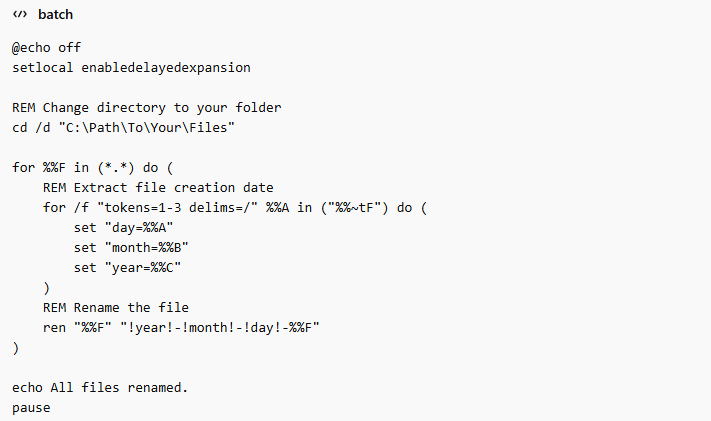
How it works:
- The script navigates to the folder you specify.
- It loops through all files in that folder.
- It extracts the file’s creation date and constructs a new filename in the
YYYY-MM-DD_filename.extformat. - Finally, it renames the file.
Pros:
- Works on any Windows 10 PC without extra software.
- Simple and lightweight.
Cons:
- Limited formatting options.
- Potential for file name conflicts if multiple files share the same date.
- Can be tricky for users unfamiliar with scripts.
1.2 PowerShell Script Method
PowerShell is a more powerful scripting environment included in Windows 10. It provides greater control over file properties and allows for advanced formatting and conflict handling.
Here’s a sample PowerShell script to rename files to their creation date:
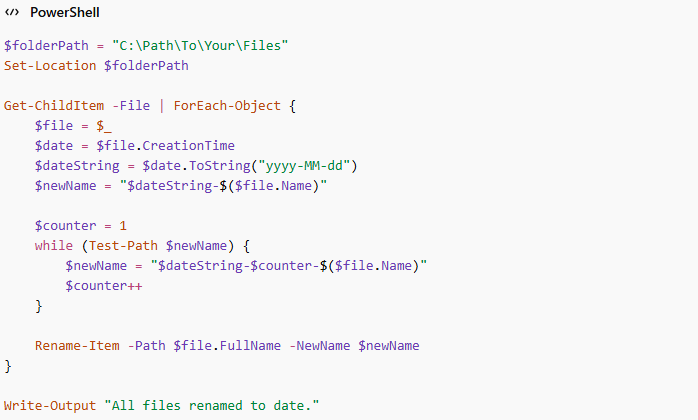
How it works:
- The script targets the folder you specify.
- It loops through all files and retrieves each file’s creation date.
- The script formats the date as
YYYY-MM-DDand prepends it to the original filename. - It also handles duplicate filenames automatically by adding a counter.
Pros:
- Flexible date formatting.
- Handles duplicates automatically.
- Works with all file types.
Cons:
- Requires familiarity with PowerShell.
- You may need to adjust execution policies to allow script running (
Set-ExecutionPolicy RemoteSigned).
Both Batch and PowerShell scripts are effective, but they require some technical knowledge. Mistakes in the folder path or syntax can lead to errors or even file loss if precautions are not taken.
2. Try the Easy-to-Use Bulk File Renamer – RenameKit
For users who want a more intuitive and safer way to rename files to dates, RenameKit is a highly recommended solution. RenameKit is a powerful file renaming tool for Windows and Mac that allows users to rename files and folders in bulk with ease. It simplifies complex tasks that would otherwise require scripts or manual effort.
Key Features of RenameKit :
- Rename dozens or hundreds of files in just a few clicks.
- Add prefixes, suffixes, replace text, or combine multiple rules in one batch operation.
- Automatically rename files using creation, modification, or access dates.
- See exactly how your files will look before applying changes, which reduces mistakes.
- Automatically add counters to files with the same names, avoiding overwriting.
- No need to know coding or scripts – everything is done through a simple graphical interface.
How to Rename Files to Date Using RenameKit :
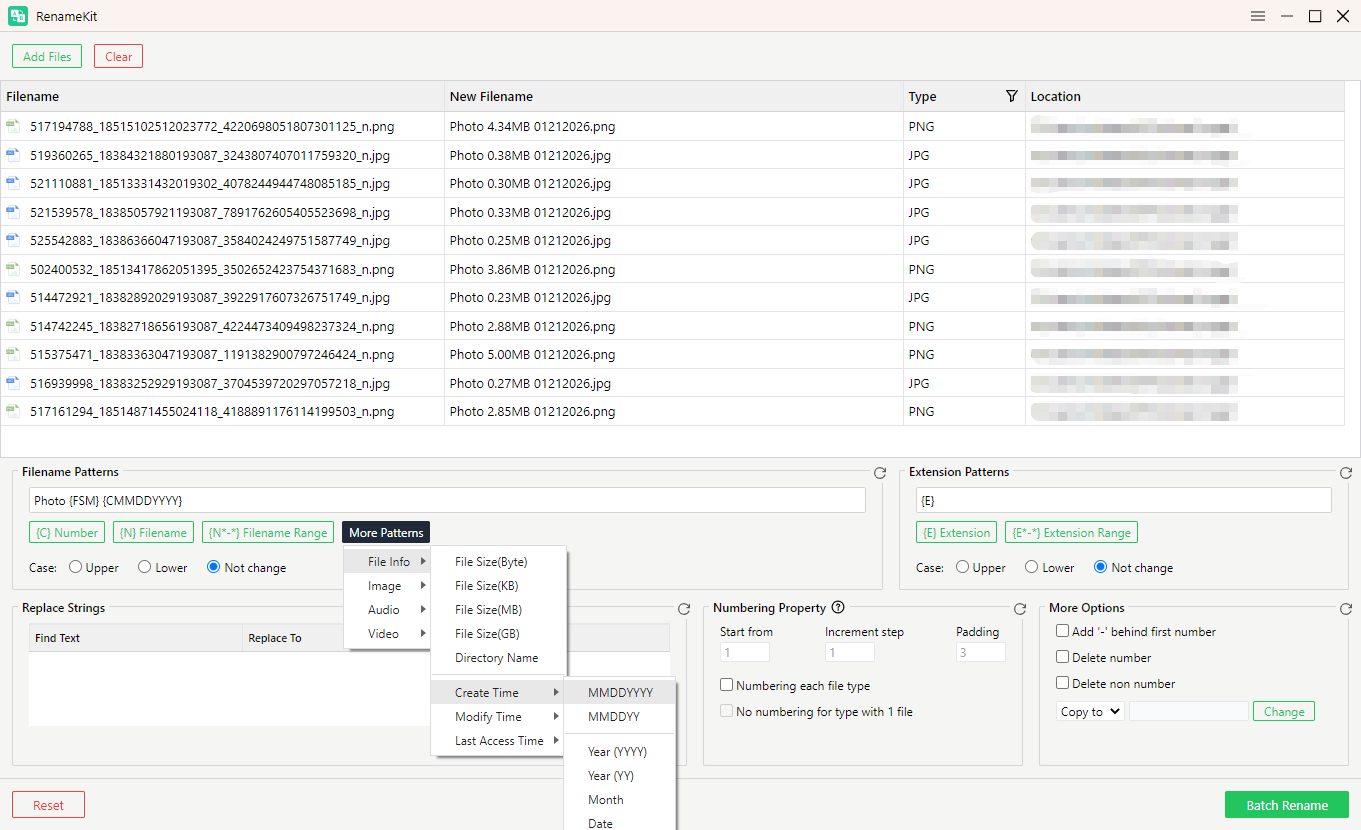
- Download and Install RenameKit on your Windows 10 PC, then open the application.
- Select all the files you want to rename and import them into RenameKit.
- Click “More Patterns” and select “File info”, then choose “Create Time” and select which date to use (Creation, Modification, or Last Access).
- Preview the new filenames and click “Bulk Rename”Batch Rename” to apply the changes instantly.
3. Conclusion
While Windows 10 scripts—both Batch and PowerShell—are powerful for renaming files to their date, they can be complex and risky for users who are not familiar with coding. Mistyped paths, incorrect syntax, or unhandled duplicates can cause confusion or even data loss.
RenameKit offers a safe, easy, and versatile alternative. Its graphical interface, built-in previews, and advanced options make bulk file renaming simple, fast, and error-free. Whether you need to rename photos, videos, documents, or any other file types, RenameKit allows you to organize your files by date with just a few clicks.
For anyone looking to streamline their file management process in Windows 10, RenameKit is the most practical and reliable solution. It combines the power of automated date-based renaming with the simplicity of a user-friendly interface, making file organization effortless.