How to Download and Record Videos of MyFreeCams Models?

MyFreeCams (MFC) is one of the longest-running and most popular live cam platforms on the internet. Many viewers form long-term connections with models and occasionally want to save certain videos—perhaps a performer has granted explicit permission, a user is trying to save private shows they purchased, or a creator wants to download their own past streams.
We will cover some ways to download MyFreeCams videos and record model’s live streams.
1. How to Download MyFreeCams Model’s Videos?
2.1 Downloading Using Browser Developer Tools
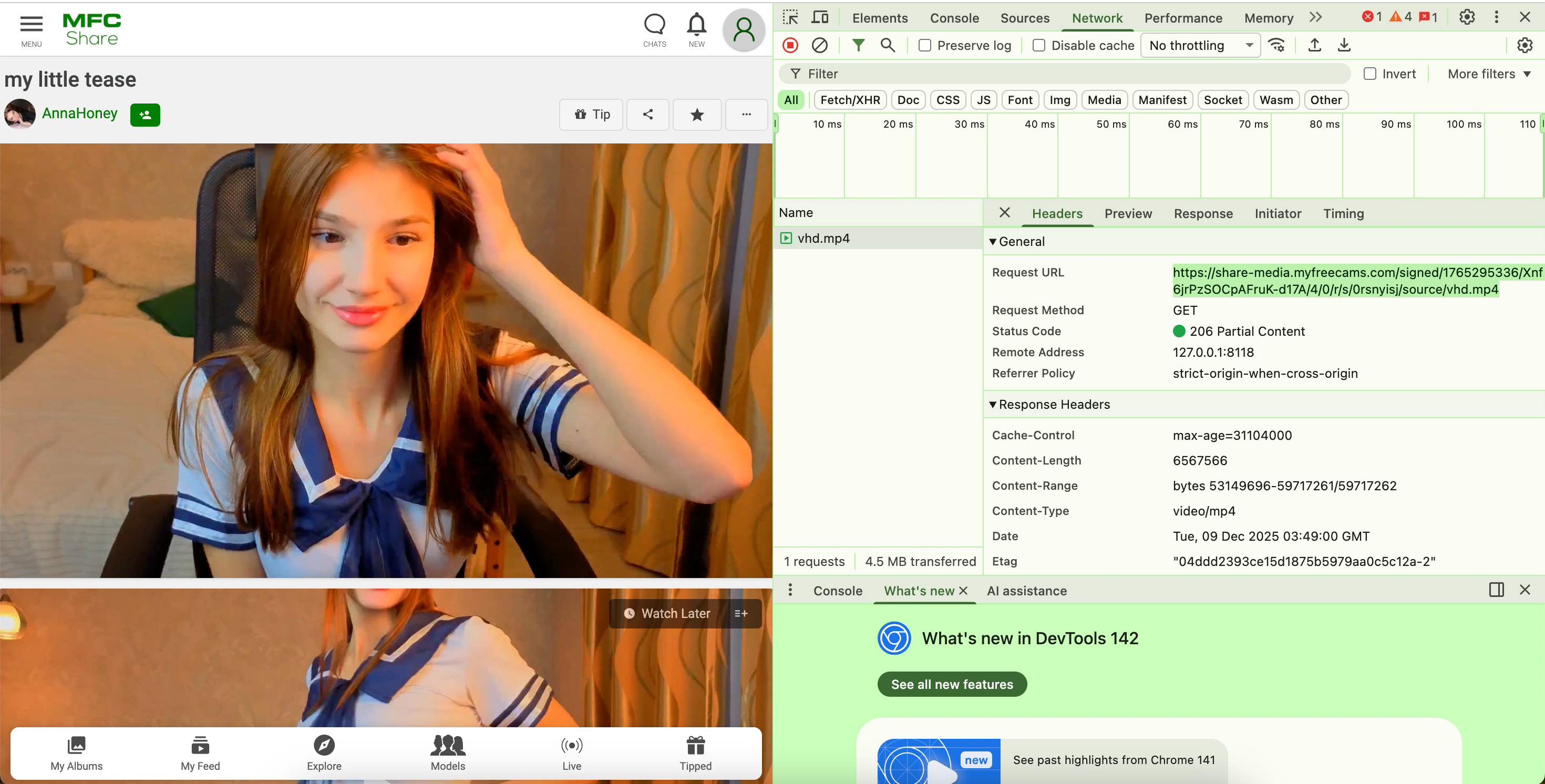
Browser Developer Tools can reveal video request URLs and streaming playlists.
Steps:
- Open Google Chrome or Firefox → Right-click the MyFreeCams video page → Inspect, or press F12.
- Play the video → Open the Network tab → Filter the video types, e.g. .MP4.
- Copy the MyFreeCams video URL, open it in a new tab, then right-click and save it offline.
Pros:
- Free to use
- Built-in—no extra software needed
Cons :
- Complex for beginners; requires technical knowledge
- DRM and token-based URLs can block downloads
1.2 Using Video Downloader Browser Extensions
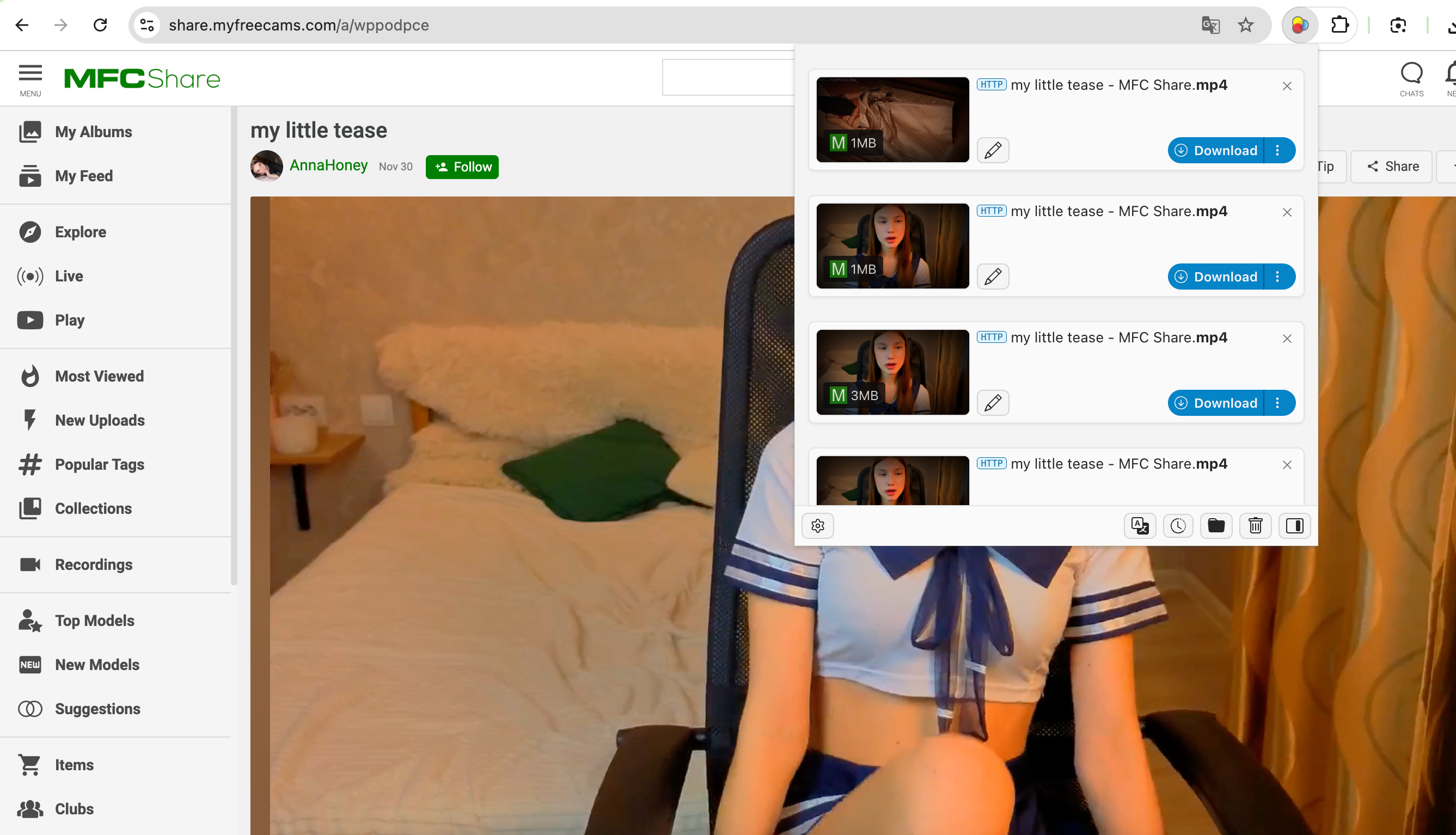
Some video downloader extensions can sometimes detect publicly accessible media streams.
Popular Extensions Include:
- Video DownloadHelper
- Streaming Video Downloader
- Chrono Download Manager
How to Use Extensions:
- Install the extension (like Video DownloadHelper) from the official Chrome Web Store or Firefox Add-ons.
- Visit the video and play it, then click the extension to detect media files.
- Choose the available quality and save the video from MyFreeCams.
Pros :
- Simple to use
- Works for some replay formats
- No technical knowledge required
Cons :
- Often fails with encrypted MFC streams
- Performance varies by browser
1.3 Downloading with VidJuice UniTube
VidJuice UniTube is a desktop application that automatically analyzes video pages and extracts downloadable media when possible. It’s generally more powerful than browser extensions.
How Does VidJuice Work:
- Install UniTube on your device and set desired download parameters.
- Copy the URL of a MyFreeCams video or replay you are authorized to save, then open it with UniTube’s Online tab.
- Click the download button to start downloading, find the downloaded MyFreeCams videos in the “Finished” tab when finished.

Pros:
- Desktop-level performance
- Often more accurate than browser extensions
- Great for creators downloading multiple videos
Cons:
- Reqiures installation
- Limited free trial
2. How to Record MyFreeCams Model’s Live Streams?
If you need to obtain MyFreeCams recordings, here are some reliable solutions to record lives in the platform.
2.1 Record with Swyshare Recordit — The Best Easy-to-Use Solution
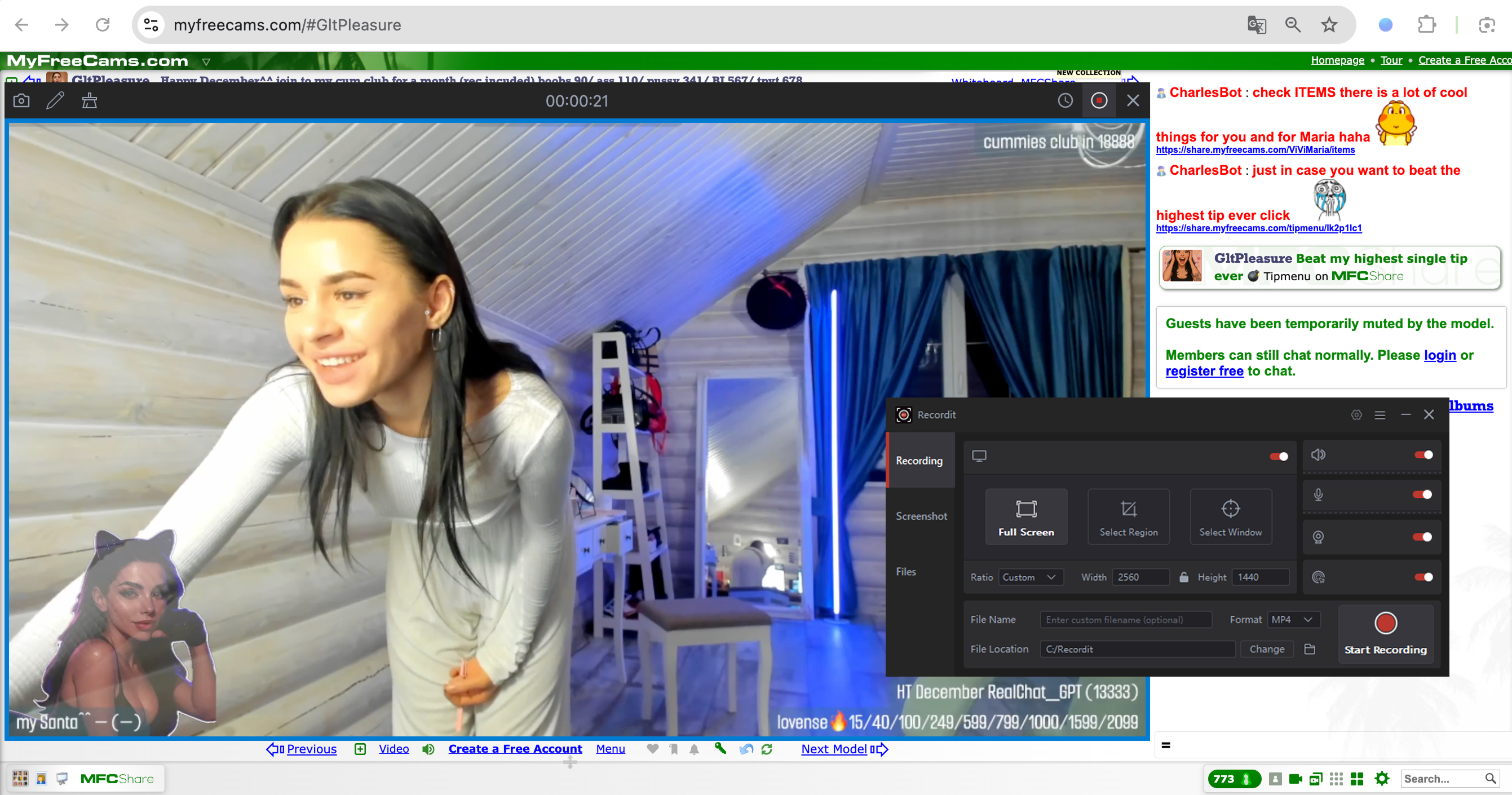
Recordit is one of the simplest and most effective screen recorders available. It is ideal for viewers or creators who want a clean, fast, and trouble-free way to record authorized content from MFC.
Key features of Recordit :
- Capture full screen, specific windows, or selected regions
- Save videos in HD or higher quality
- Record system audio, microphone and webcam
- Record the last X seconds retroactively
- Set start and stop times for automatic capture
- Run smoothly on most computers
How to record MyFreeCams with Recordit :
- Open the MFC stream and launch Recordit to choose recording area.
- Confirm audio settings (system audio, mic, etc.) and set output options, including format, resolution and folder location.
- Click Start Recording. When finished, click Stop Recording and find the video in the “Files” tab.
2.2 Record with Open-Source OBS Studio
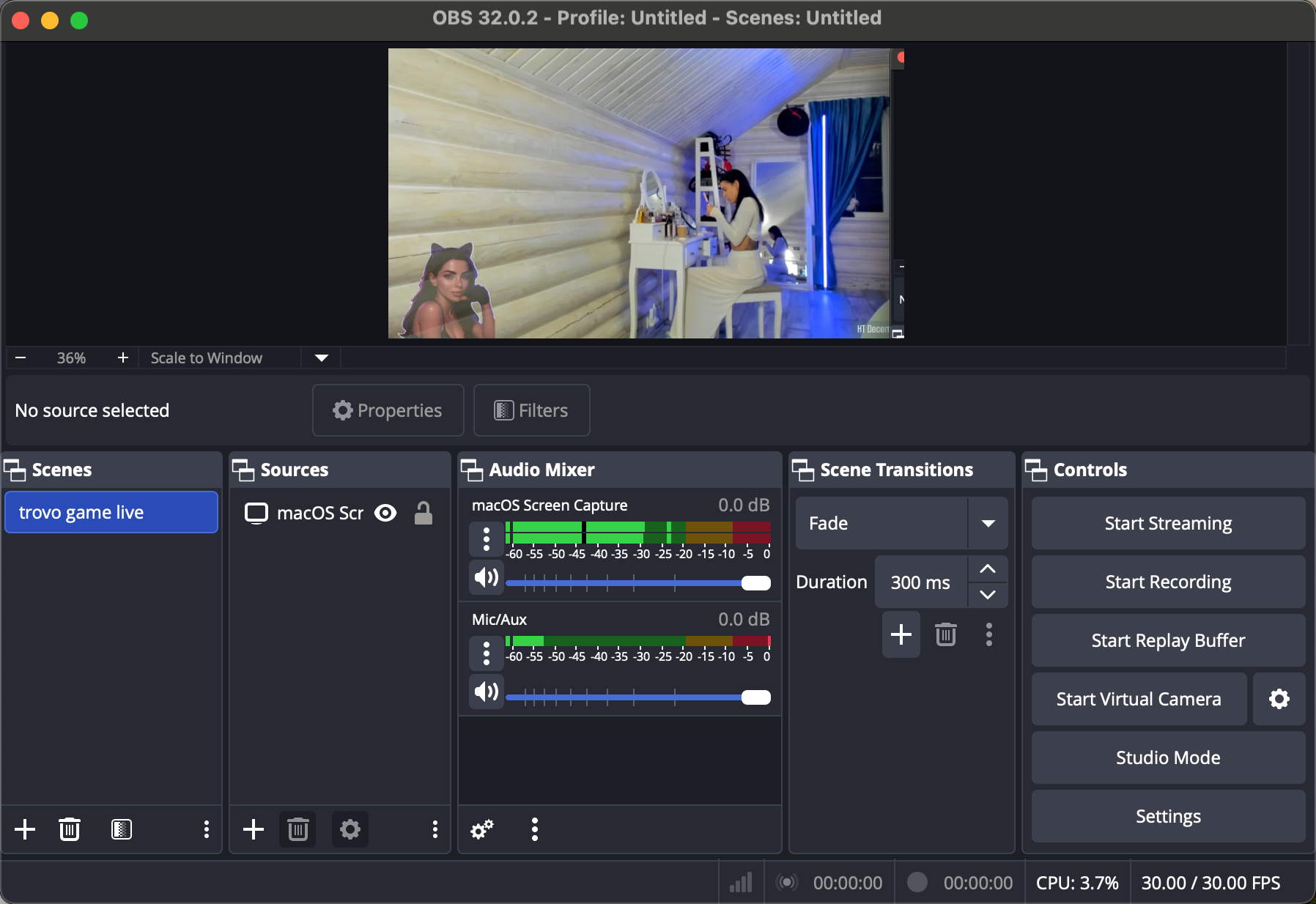
OBS Studio is a powerful, free, open-source solution widely used by streamers and professional creators. It requires more setup but offers advanced controls.
How to Record MFC with OBS :
- Install and open OBS Studio to add a Window Capture or Display Capture source.
- Select your browser window playing the stream.
- Set audio devices (desktop audio, microphone), then click Start Recording.
Pros:
- Completely free
- High-quality recording
- Customizable layouts and multiple sources
- Perfect for long, high-resolution streams
- Multiple audio tracks and advanced encoding options
Cons:
- Learning curve
- Higher resource usage than lightweight recorders
2.3 Record Using Screen Recorder Browser Extensions
Screen-recorder extensions offer quick, no-install recording directly in the browser.
Popular Options Include:
- Screenity
- Loom
- Awesome Screenshot & Recorder
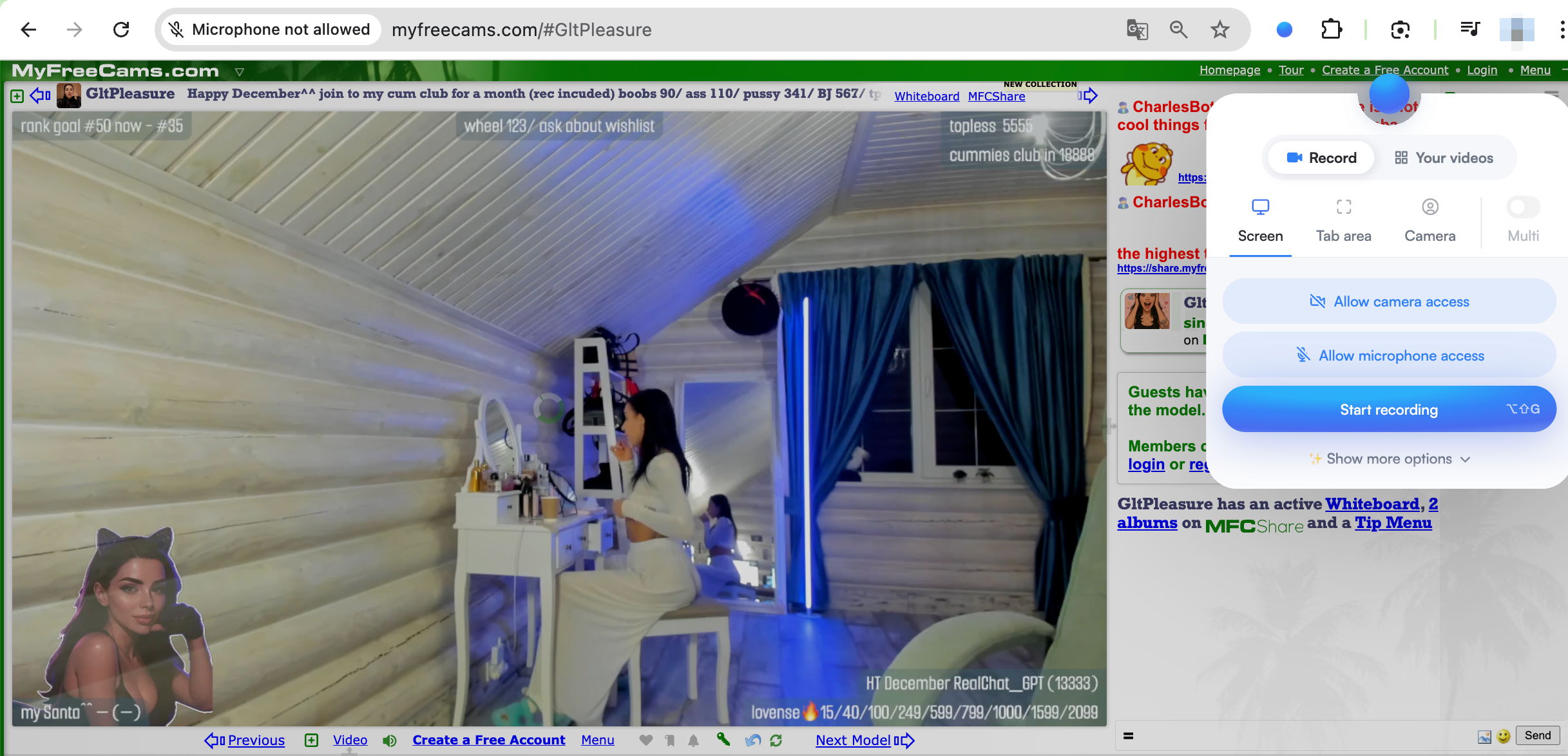
How They Work :
- Install the extension like Screenity.
- Open a live stream on MyFreeCams, then click the extension to choose Tab, Window, or Full Screen recording.
- Enable system audio recording and begin recording the stream.
Pros :
- Fast setup
- No software installation
- Good for short recordings
Cons :
- Lower quality than Recordit or OBS
- Limited audio controls
- Not ideal for long streams
3. Conclusion
There are several ways to save MyFreeCams videos and live streams, including using browser developer tools, downloader extensions, or dedicated software like VidJuice UniTube. Each method has its own advantages and limitations, from technical complexity to variable reliability.
When it comes to recording live streams, Recordit stands out as the most user-friendly and versatile solution. It offers high-quality capture, scheduled recordings, instant replay, and easy setup, making it ideal for efficiently saving content.