How to Resolve “OBS Did Not Shut Down Properly” on Mac?

OBS Studio has long been a go-to recording and streaming tool for Mac users who need professional control over their audio, video, and screen capture setup. Whether you’re filming tutorials, capturing gameplay, or hosting livestreams, OBS delivers flexibility that few free tools can match. However, Mac users also know that OBS can be temperamental. One of the most common frustrations is the message: “OBS did not shut down properly.”
This warning often appears after OBS freezes, crashes, or is forced to quit. It can interrupt your workflow, prevent OBS from launching cleanly, and even make you worry that your scenes or settings might be corrupted. The good news? This issue is usually caused by stuck background processes, outdated plugins, permission conflicts, or corrupted cache files—and all of them can be fixed with simple steps.
In this guide, you’ll learn how to troubleshoot the error quickly and effectively, restore OBS to smooth operation on macOS.
1. How to Resolve “OBS Did Not Shut Down Properly” on Mac
1.1 Fully Quit OBS and Force Quit Any Background Processes
Even if OBS looks closed, macOS may still keep some OBS threads running, causing the error on the next launch.
Steps:
- Quit OBS normally (OBS > Quit OBS).
- Open Activity Monitor (Applications > Utilities).
- Search for:
- obs
- obs-web
- obs-virtualcam
- obs-browser-source
- obs helper processes
- Select and Force Quit any remaining OBS-related processes.
- Restart OBS.
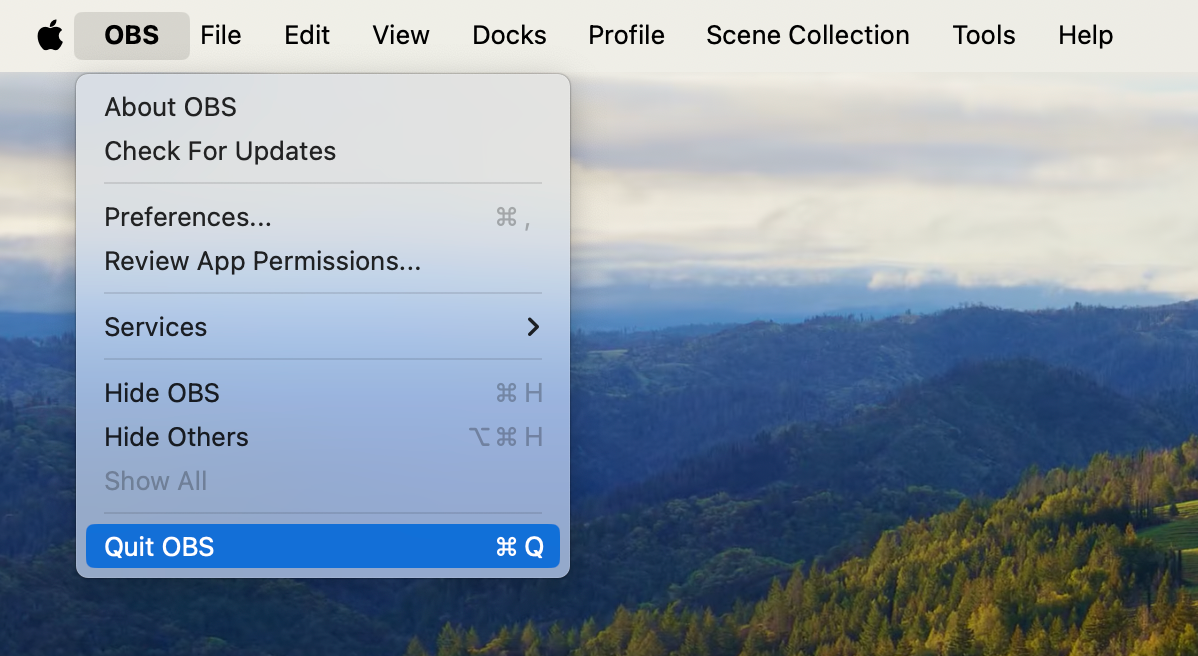
If a stuck plugin or browser source caused the crash, this alone often solves the issue.
1.2 Restart Your Mac to Clear Locked Files
Sometimes OBS leaves behind temporary lockfiles or system-level processes that prevent a clean restart. A full macOS reboot clears them.
- Click Apple Menu > Restart .
- Once rebooted, open OBS again.
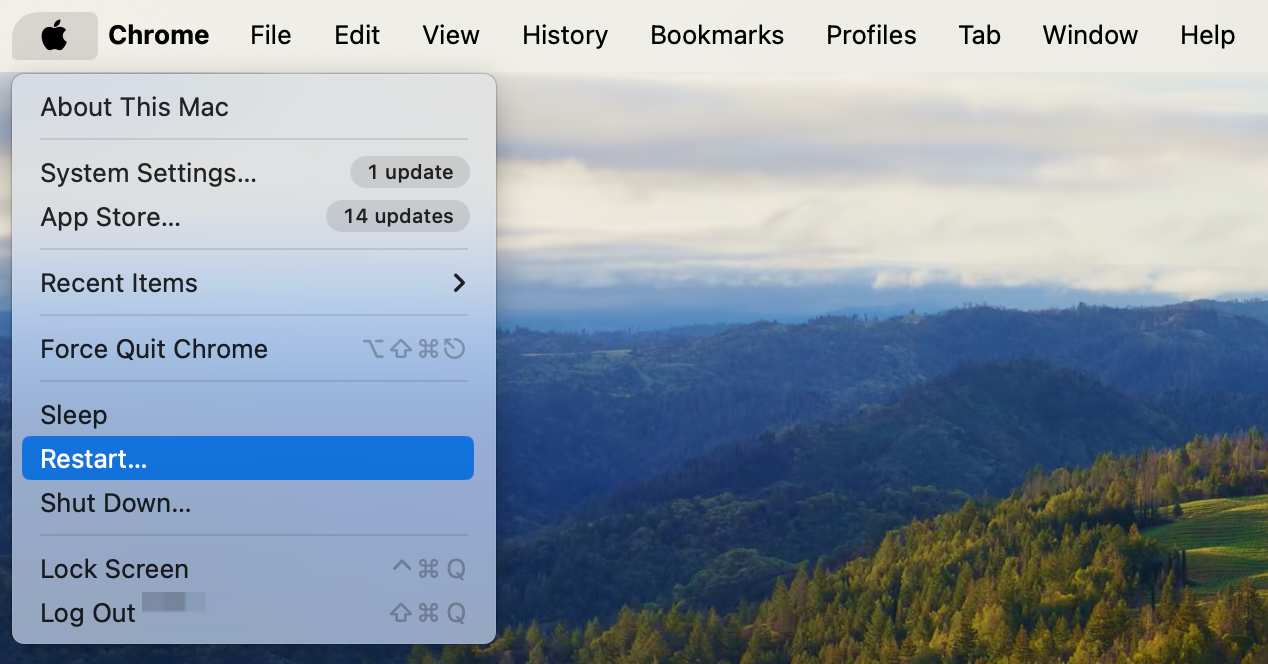
If the error disappears, the shutdown was stuck at the macOS process level, not OBS itself.
1.3 Update OBS to the Latest macOS-Compatible Version
OBS updates frequently include macOS-specific fixes for:
- GPU optimization
- Browser source crashes
- Virtual Camera issues
- Apple Silicon hardware acceleration
To update:
- Open OBS > OBS Studio > Check for Updates > Install the latest version
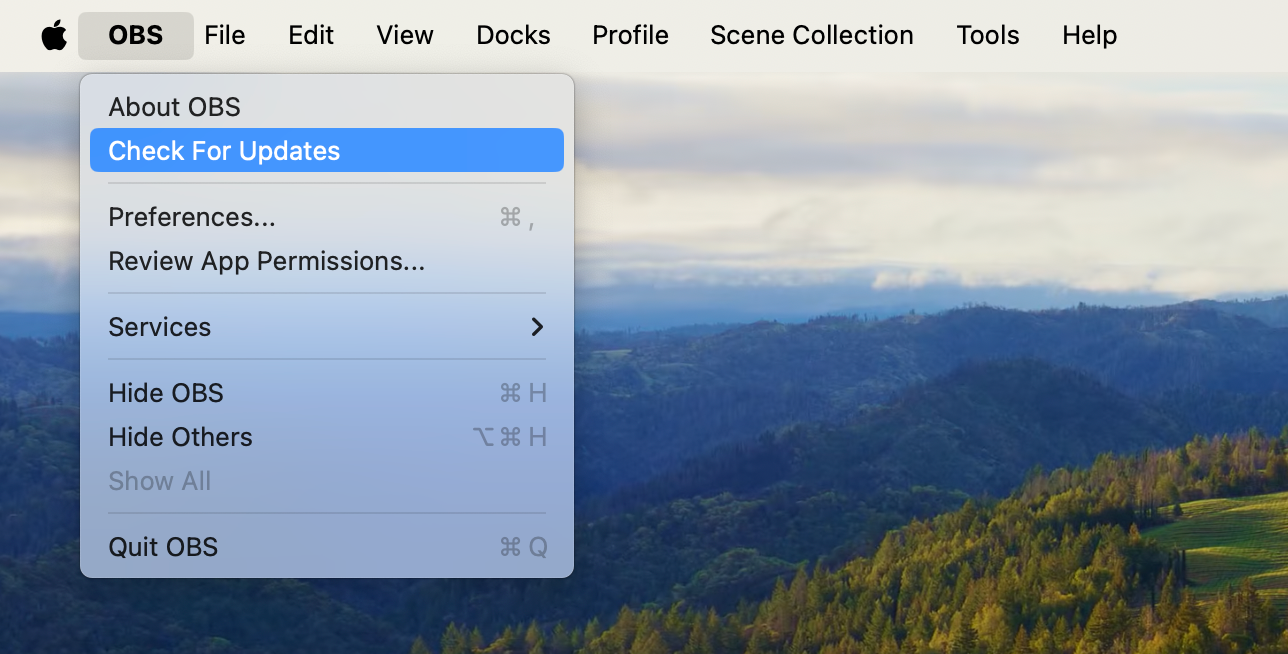
Or download the newest build from the official OBS site.
If you’re running an older Intel-based version on an M1/M2/M3 Mac, performance and stability issues are almost guaranteed—so updating is essential.
1.4 Remove or Disable Problematic Plugins
Plugins like:
- OBS WebSocket
- StreamFX
- Advanced Scene Switcher
- Browser-based plugins
- Outdated shader/effects plugins
can all cause unexpected shutdown failures on Mac.
Try this:
- Go to /Library/Application Support/obs-studio/plugins
- Move third-party plugin folders to your desktop
- Relaunch OBS
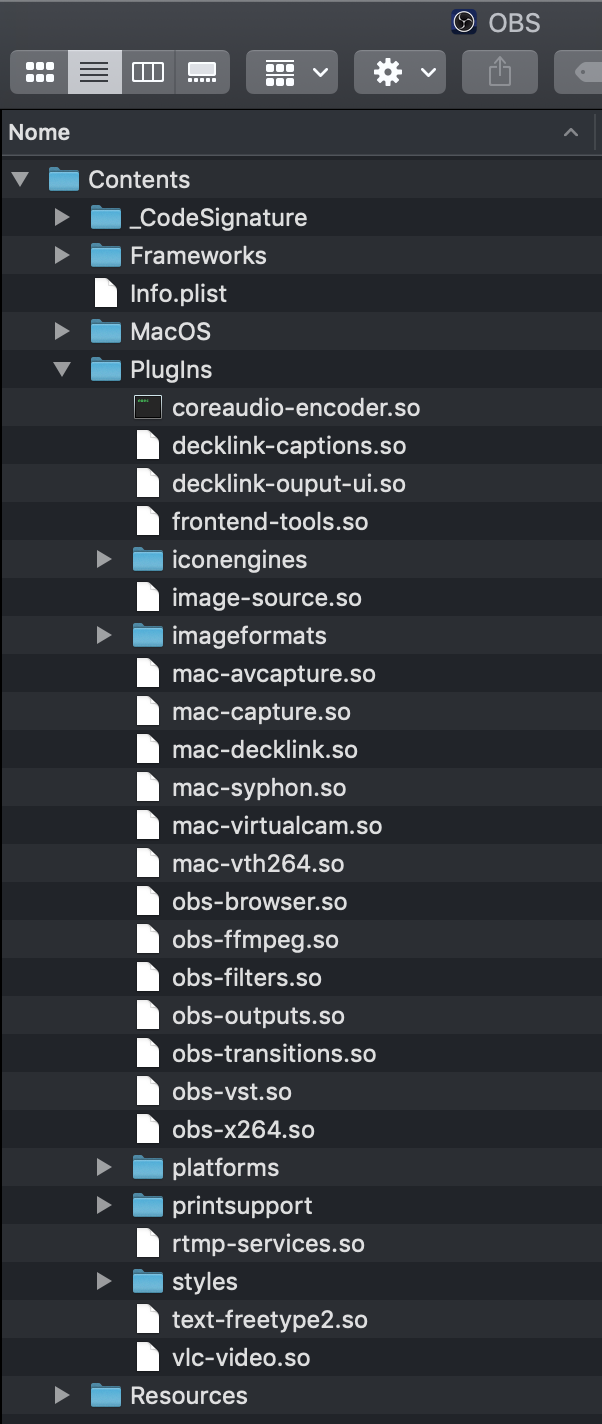
If OBS launches cleanly after removing the plugins, then one of them was causing the issue, so reintroduce them one by one to find which one is responsible.
1.5 Reset OBS Settings
If OBS’s configuration files become corrupted, they can prevent proper shutdown.
Here’s how to reset safely:
- Navigate to
~/Library/Application Support/obs-studio/basic/profiles/ - Move your profiles to a backup folder
- Do the same for
~/Library/Application Support/obs-studio/basic/scenes/ - Relaunch OBS
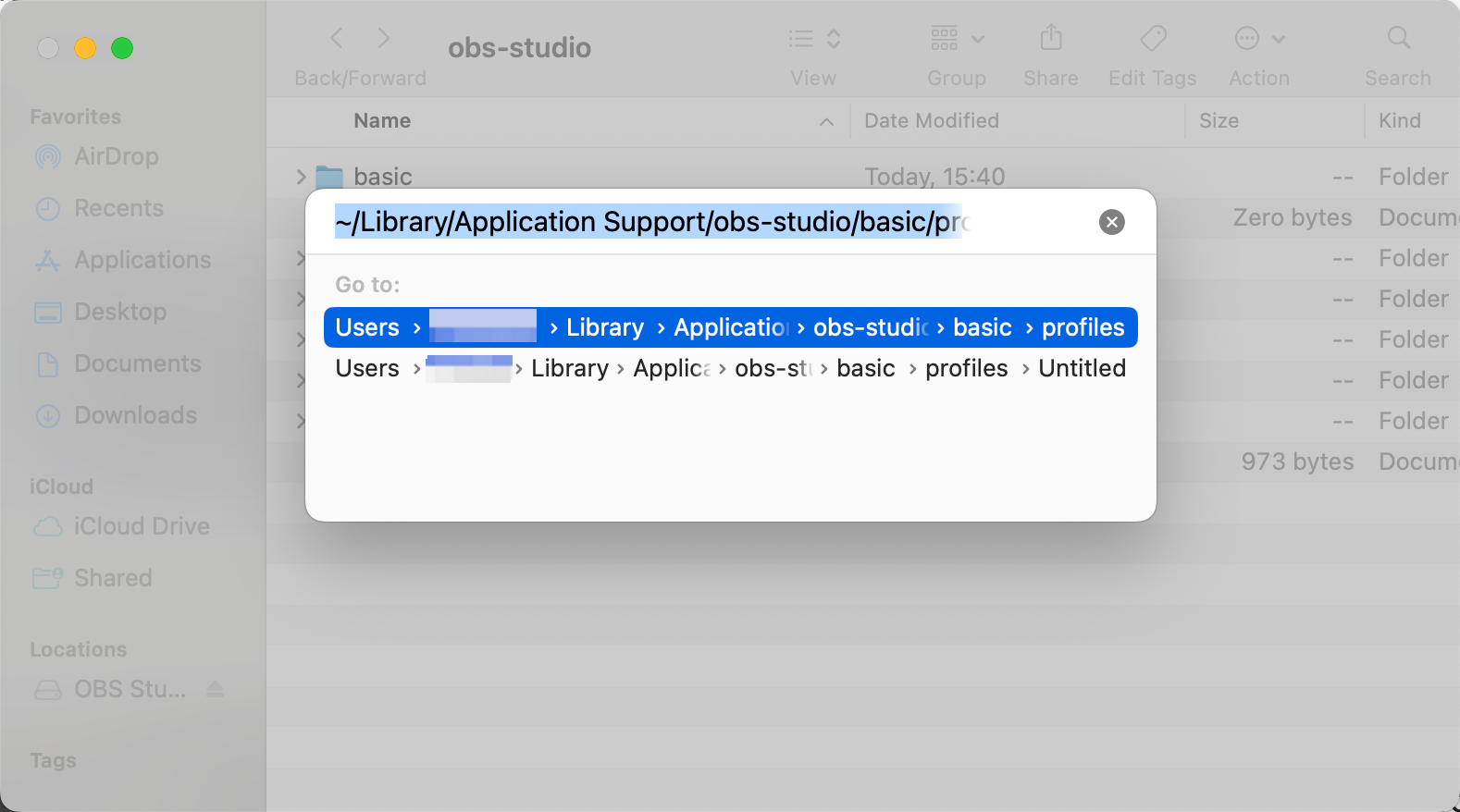
If the error is gone, your old profile or scene collection was corrupted.
After that, you can:
- Import them back one at a time
- Rebuild scenes if they were causing crashes
1.6 Reset OBS Completely
If nothing works, a complete reinstall almost always fixes the shutdown error.
Steps:
A. Delete OBS
- Open Applications > right-click OBS > Move to Trash
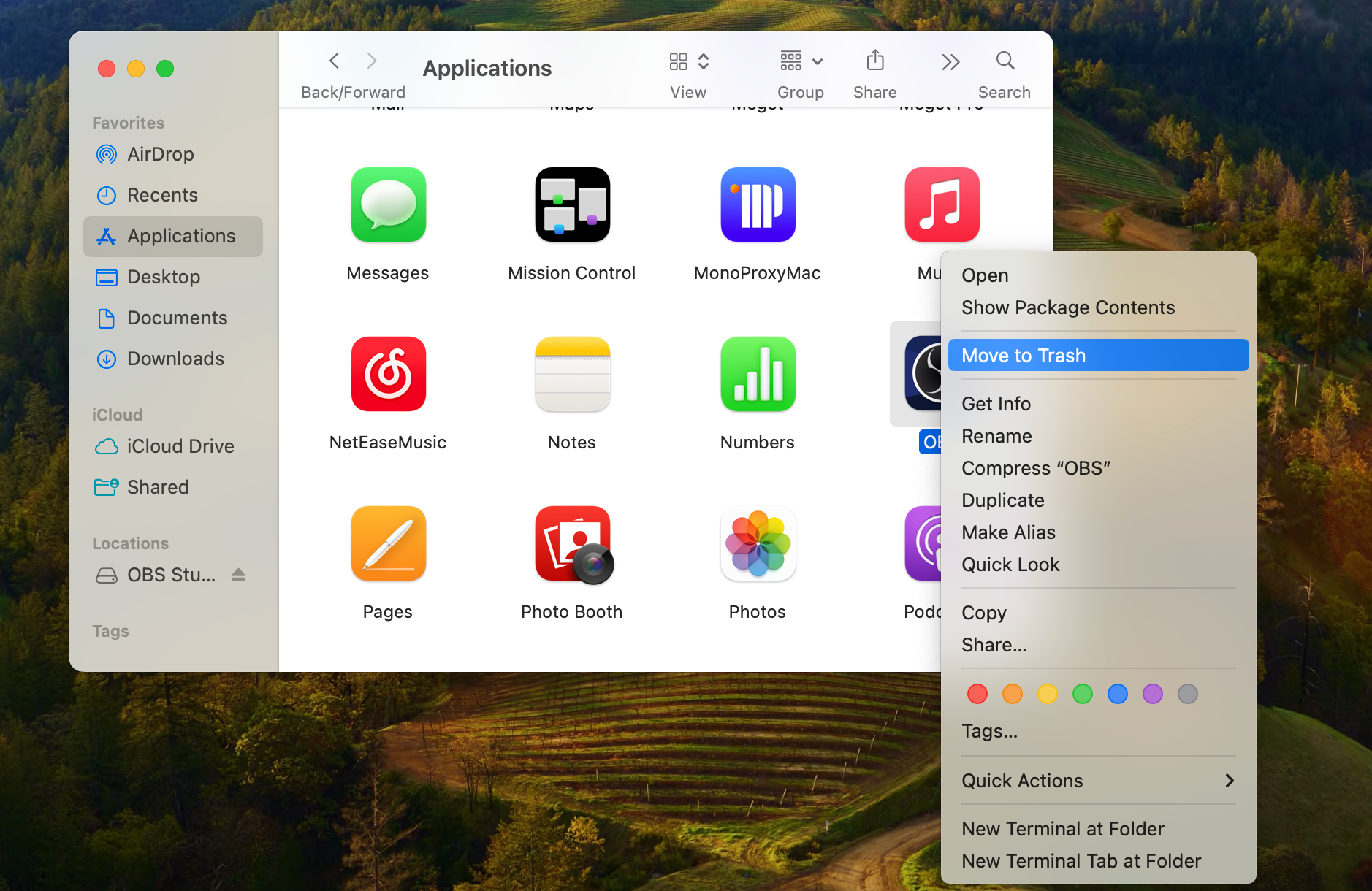
B. Remove OBS configuration folders
Delete these manually:
~/Library/Application Support/obs-studio
~/Library/Preferences/com.obsproject.obs-studio.plist
~/Library/Caches/com.obsproject.obs-studio
C. Reinstall OBS
Download a fresh copy and install.
A clean reinstall eliminates:
- Corrupted scene files
- Broken plugins
- Faulty caches
- Damaged preferences
and restores OBS to stable condition.
1.7 Check macOS Permissions
OBS requires permissions for:
- Microphone
- Camera
- Screen Recording
- Files & Folders
When these become mismatched, OBS may freeze on exit.
To fix:
- Go to System Settings > Privacy & Security > Re-enable permissions for OBS > Relaunch OBS
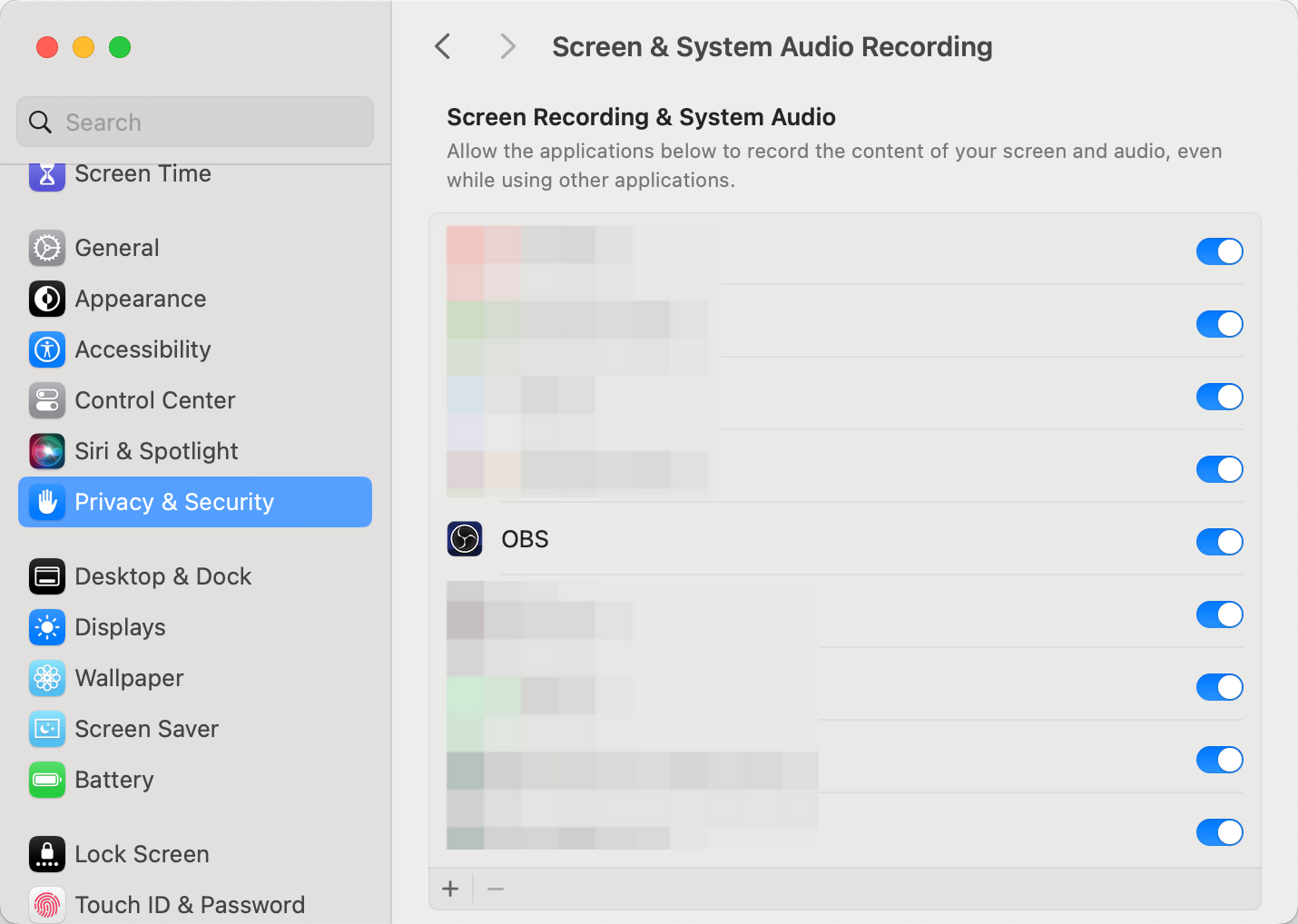
If OBS previously crashed while accessing one of those permissions, this resolves the issue.
1.8 Turn Off Hardware Acceleration or Change GPU Settings
On Apple Silicon Macs, hardware acceleration improves performance—but malfunctioning browser sources or filters can cause OBS to hang on exit.
Try turning it off:
- Go to OBS > Settings > Advanced
- Disable Hardware-accelerated rendering
- Disable Browser Source Hardware Acceleration
- Restart OBS
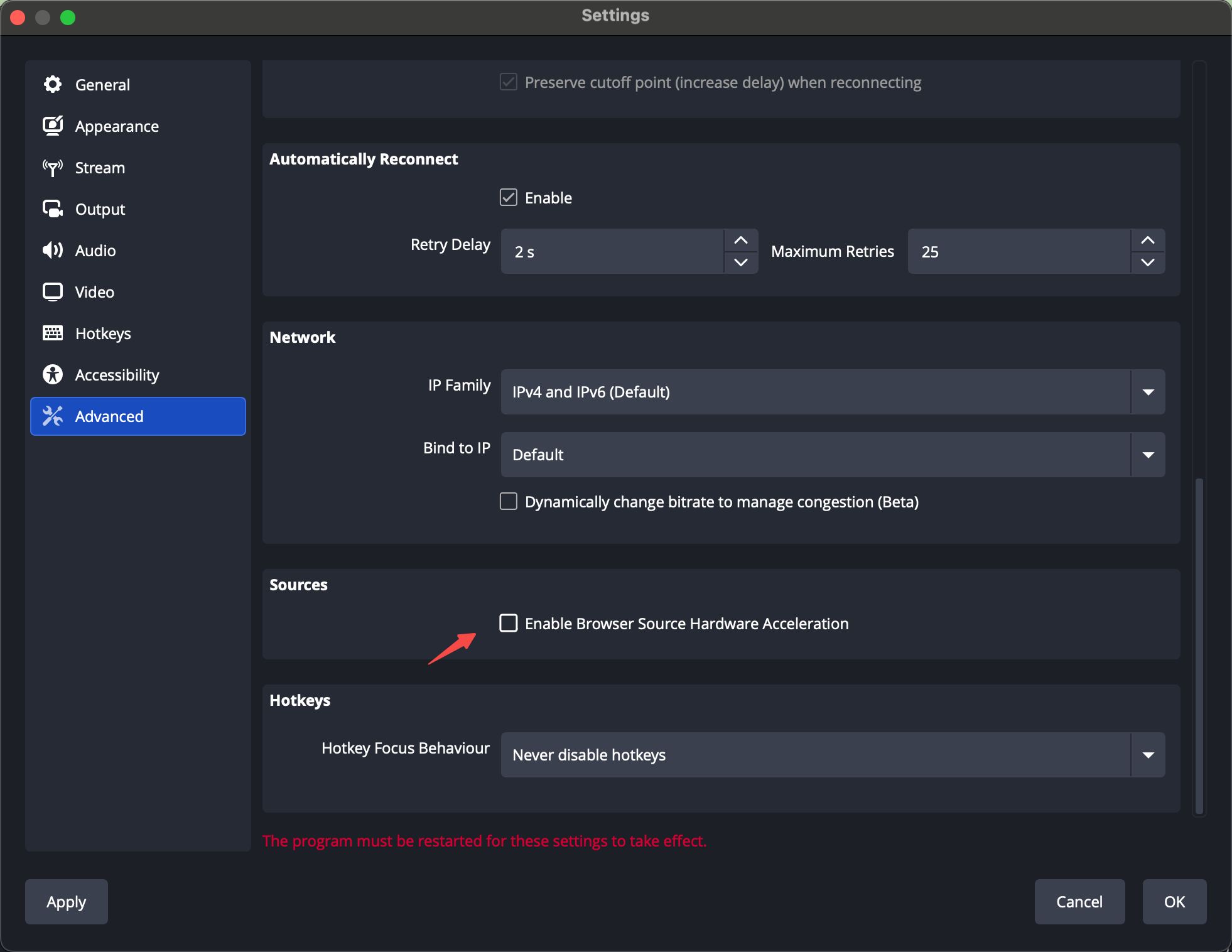
If a GPU process was causing the shutdown issues, OBS should now launch and close normally.
2. Try the Simple, Hassle-free OBS Alternative — Swyshare Recordit
Let’s be honest: OBS is powerful but technical, and fixing constant crashes can be tiring—especially if you just want to record your screen without managing plugins, scenes, or GPU settings.
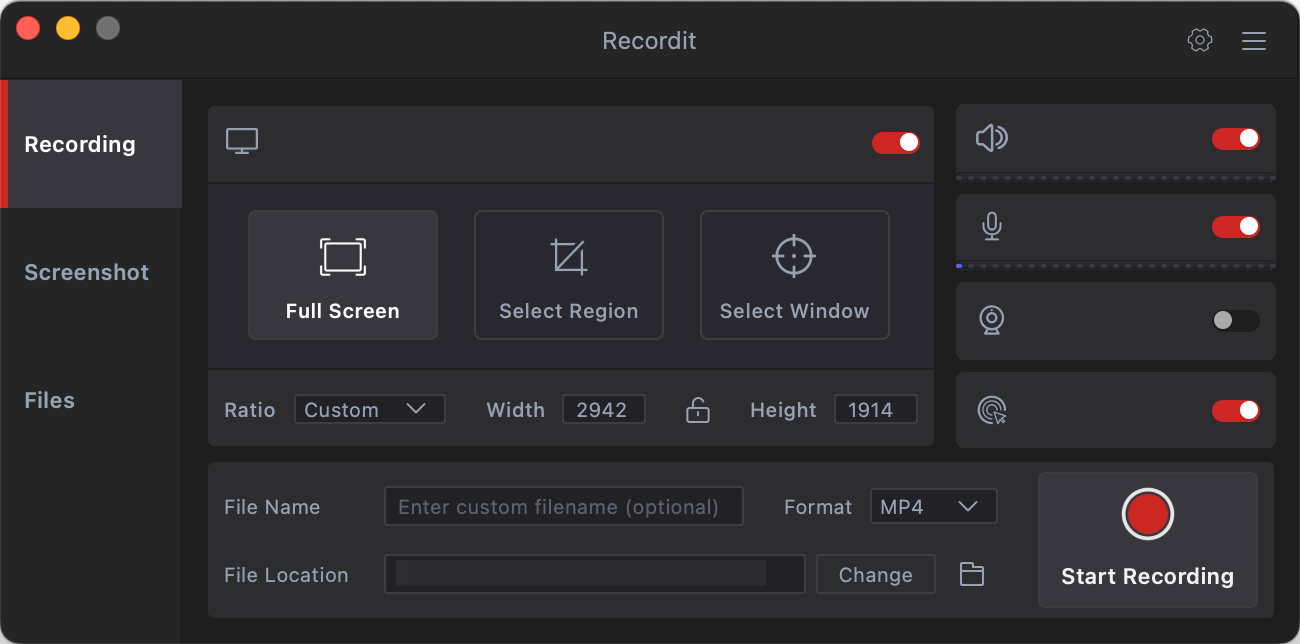
If you need a simple, stable, frustration-free screen recording tool, Swyshare Recordit is a great alternative to OBS on both Windows and Mac.
Why Recordit is Easier Than OBS :
- No complicated setup — just open and start recording.
- Lightweight and crash-free — avoids OBS’s plugin and GPU issues.
- Simple interface — no scenes or complex configurations.
- Built-in tools — mouse effects, drawing tools, and video editor.
- One-click full screen, window, or region recording — no manual layout building.
- Internal + microphone audio capture — automatically synced.
- Multiple output formats — MP4, GIF, MP3, and more without extra settings.
3. Conclusion
The “OBS did not shut down properly” error on macOS is frustrating but usually fixable with the right steps—clearing background processes, updating OBS, removing bad plugins, or resetting configuration files. In many cases, a clean reinstall solves it completely.
However, not every user has time to troubleshoot OBS every time it crashes. If you want a simple, stable, and smooth recording experience, Swyshare Recordit is the best alternative. It removes all the technical headaches and lets you start recording instantly—something OBS doesn’t always guarantee.