How to Fix OBS Frames Skipped Due to Encoding Lag?

OBS Studio is one of the most widely used tools for screen recording and live streaming, favored by gamers, educators, and content creators for its flexibility and zero cost. However, many users encounter a common and frustrating problem: “ Frames Skipped Due to Encoding Lag. ” When this error appears, the recorded or streamed video may look choppy, stutter, or lose audio synchronization, making the final output unpleasant to watch.
In this article, we’ll explain what encoding lag means in OBS, list the main reasons OBS skips frames, walk through proven fixes, and introduce a simple OBS alternative for users who want smooth recording without complex configuration.
1. What Does “Encoding Lag” Mean in OBS?
In OBS, encoding lag occurs when your system captures video frames successfully but cannot encode them fast enough in real time. Encoding is the process of compressing raw video data into a playable format such as H.264 or HEVC. If the encoder falls behind, OBS intentionally skips frames to prevent freezing or crashing.
It’s important to note that encoding lag is not related to internet speed. Many users confuse it with dropped frames caused by network issues, but encoding lag is a local performance problem. It usually points to an overloaded CPU or GPU, or encoder settings that are too demanding for your hardware.
You can monitor encoding lag in OBS by opening View → Stats, where “Frames Skipped (Encoding Lag)” is shown as a percentage.
2. Why OBS Frames Are Skipped Due to Encoding Lag?
OBS skips frames when your system can’t encode video fast enough. The most common reasons include:
- CPU overload – Using x264 with high-quality presets puts heavy strain on the CPU, especially during gaming or multitasking.
- GPU overload – Even hardware encoders like NVENC or AMF can lag if the GPU is already heavily used.
- High resolution or FPS – Recording or streaming at 1080p60, 1440p, or 4K greatly increases encoding workload.
- Aggressive encoder presets – Quality, Max Quality, or Slow presets require more processing power.
- Advanced encoding features enabled – Look-ahead and Psycho Visual Tuning improve quality but raise system load.
- Recording and streaming simultaneously – Encoding both at once doubles the demand on your hardware.
- OBS not run as administrator – OBS may not receive enough system priority.
- Background apps using resources – Browsers, launchers, and overlays can steal CPU or GPU power.
3. How to Fix OBS Frames Skipped Due to Encoding Lag?
3.1 Switch to a Hardware Encoder
Go to Settings → Output → Encoder and choose a hardware encoder:
- NVIDIA GPUs: NVENC (new)
- Intel CPUs: Quick Sync (QSV)
- AMD GPUs: H.264 (AMF)
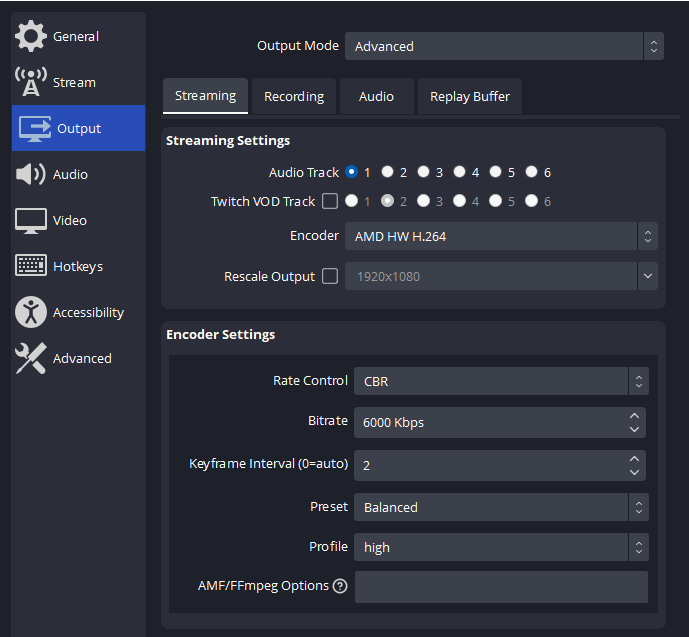
Hardware encoders significantly reduce CPU usage and are the most effective fix.
3.2 Lower Output Resolution
In Settings → Video :
- Base (Canvas) Resolution: 1920×1080
- Output (Scaled) Resolution: try 1280×720 or 1600×900
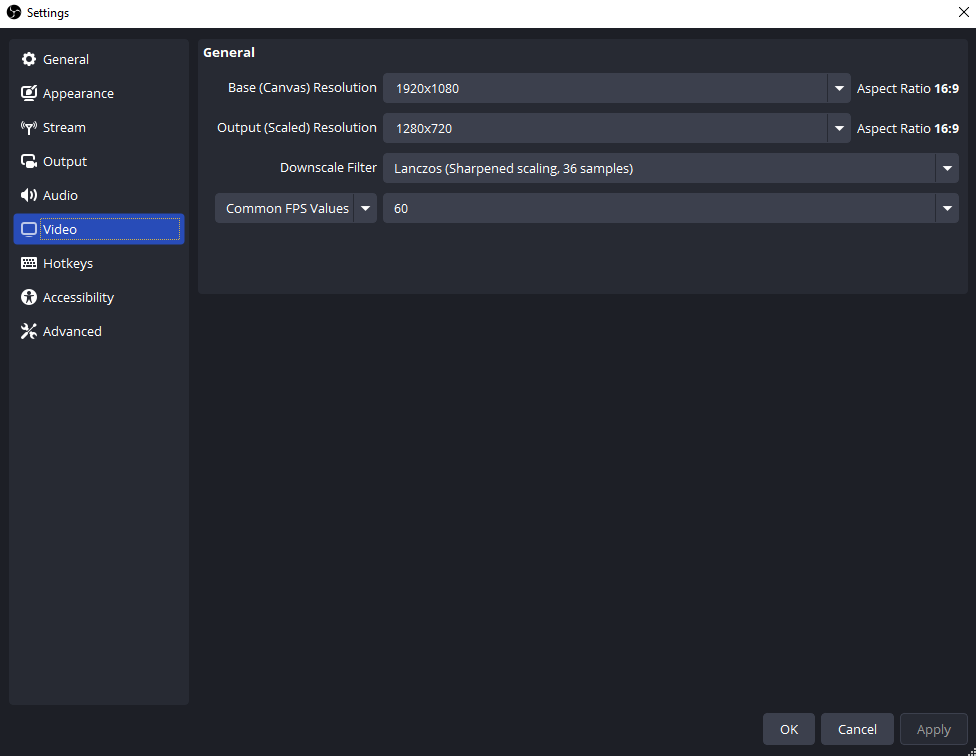
Lower resolution means fewer pixels to encode per frame.
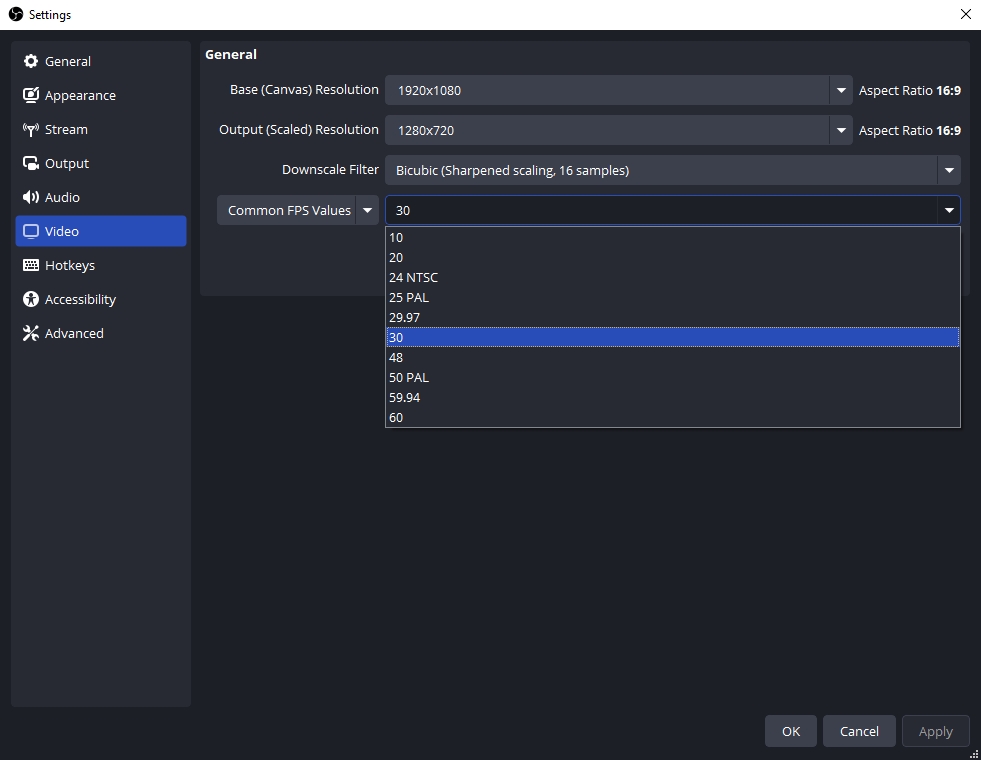
3.3 Reduce Frame Rate
Change 60 FPS to 30 FPS under Common FPS Values . This halves the encoding workload and often removes lag immediately.
3.4 Adjust Encoder Presets
Use lighter presets:
- x264: Veryfast or Superfast
- NVENC: Performance
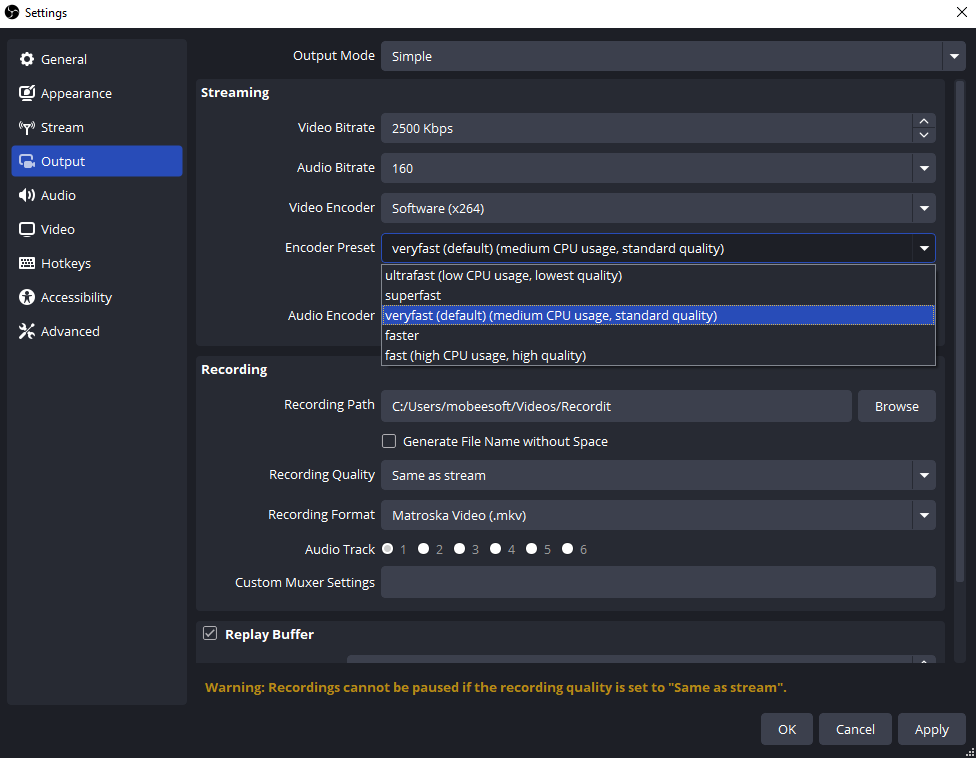
Disable Look-ahead and Psycho Visual Tuning for better stability.
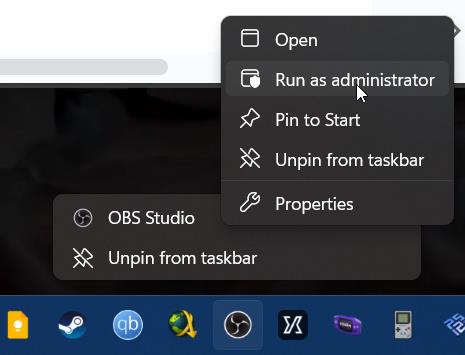
3.5 Run OBS as Administrator
Right-click OBS and select Run as administrator to ensure OBS gets sufficient CPU and GPU priority.
3.6 Close Background Applications
Close unnecessary apps such as browsers, game launchers, video editors, and overlays before recording or streaming.
3.7 Optimize Recording Settings
If you’re only recording:
- Avoid lossless quality.
- Use MP4 or MKV formats.
- Keep bitrates reasonable for your resolution and FPS.
4. Try the Simple Alternative to OBS – Swyshare Recordit
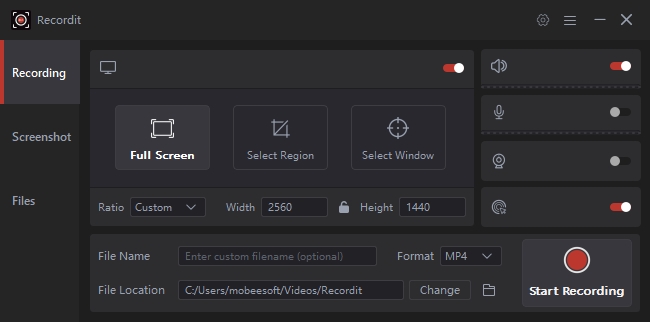
For users who find OBS too complex or constantly struggle with encoding lag, Swyshare Recordit is a simple and effective alternative. Recordit is designed for smooth, stable screen recording with minimal setup, making it ideal for beginners and professionals alike.
Main Features of Swyshare Recordit :
- Smooth screen recording with low CPU and GPU usage.
- Record full screen, selected area, or specific window.
- High-quality video output without complex settings.
- System sound and microphone recording support.
- Scheduled recording for automatic start and stop.
- Instant replay and screenshot capture during recording.
- Beginner-friendly interface with one-click recording.
Steps to Record with Swyshare Recordit :
- Download and install Swyshare Recordit on your computer, then launch the program and choose the recording mode (full screen, window, or custom area).
- Select audio sources (system sound and/or microphone) and adjust basic settings such as format and resolution if needed.
- Click to start capturing your screen; Stop the recording and save or preview the video instantly.
5. Conclusion
OBS frames skipped due to encoding lag are usually caused by hardware limitations or overly aggressive settings. By switching to hardware encoders, lowering resolution and frame rate, and optimizing OBS settings, most users can significantly reduce or eliminate encoding lag.
However, if you want a hassle-free recording experience without technical tweaking, Swyshare Recordit is highly recommended. It delivers smooth, high-quality recordings with minimal system strain, making it an excellent alternative to OBS – especially for users who prioritize stability, simplicity, and reliability.