How to See Old Versions of Websites?

Websites don’t stay the same for long. A homepage you saw last month may already look different today, and some pages disappear entirely without warning. As content gets updated, redesigned, or removed, valuable information can become harder to access over time. This creates a real need for tools and methods that let you revisit earlier versions of web pages.
Being able to see old versions of websites is useful for many reasons. It helps researchers verify sources, allows designers to study past layouts, supports businesses in tracking competitors, and even lets everyday users recover information they thought was lost. Fortunately, there are several reliable ways to access these historical snapshots.
In the following sections, we’ll look at the most practical approaches for viewing old versions of websites and how each one works in real situations.
1. Use Swyshare ArchiveKit to See Old Versions of Websites
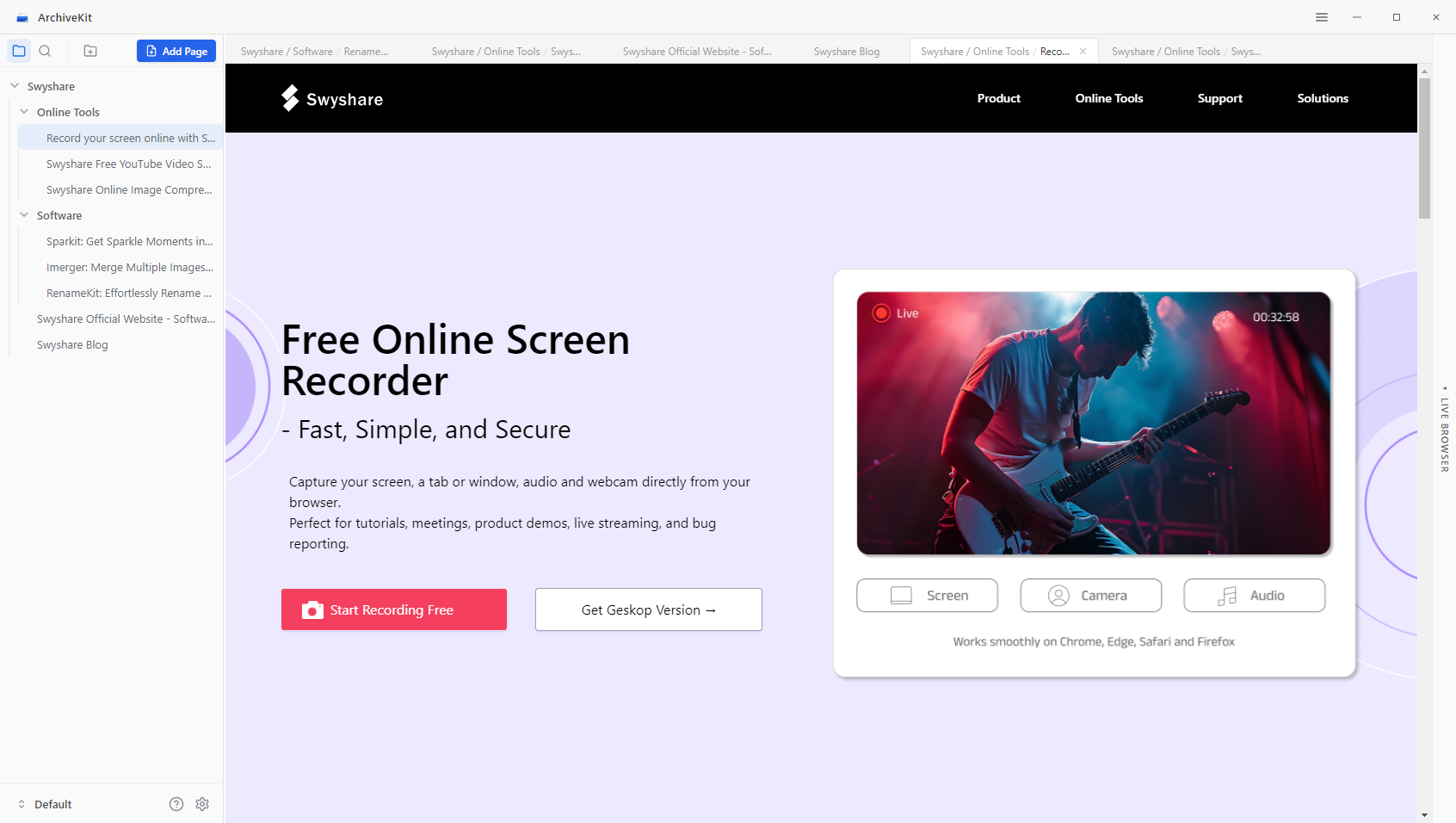
Swyshare ArchiveKit is a modern webpage-saving tool designed to capture full, functional versions of websites. Unlike traditional archives that rely on periodic crawling, ArchiveKit allows you to actively save pages exactly when you need them.
Key features of ArchiveKit include:
- Capture complete webpages with a single click
- Retain original layout, styling, and dynamic elements
- Organize saved pages using folders and tags
- Quickly find archived pages with built-in search functionality
How to use ArchiveKit to view old versions of websites:
- Install and launch ArchiveKit on your Windows or Mac device.
- Open the webpage you want to archive inside ArchiveKit
- ArchiveKit captures the full webpage while preserving its complete structure, including layout, styling, images, and interactive elements, ensuring the archived version closely matches the original site.
- You can access your saved pages anytime directly within ArchiveKit.
2. Use the Internet Archive Wayback Machine to View Old Versions of Websites
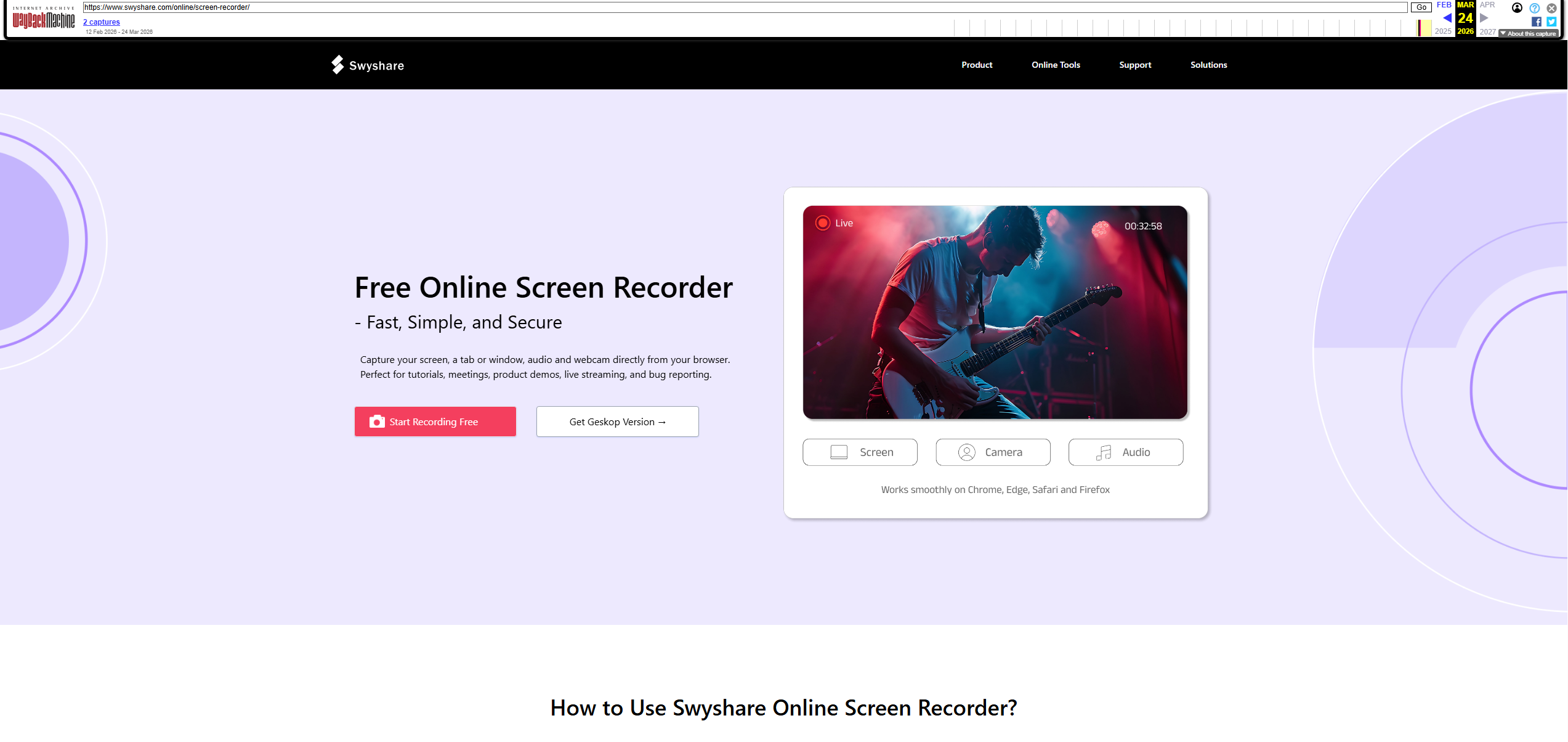
The Wayback Machine is one of the most well-known tools for viewing historical versions of websites. It has archived billions of pages since the late 1990s.
How it works:
- Visit the Wayback Machine website
- Enter the URL of the page you want to explore
- Browse the timeline and calendar of snapshots
- Select a specific date to view that version
Advantages:
- Large historical database
- Free and publicly accessible
- Great for long-term website history
Limitations:
- Not all pages are archived
- Some interactive elements may not function properly
- Snapshots depend on when the site was crawled
3. Check Search Engine Cached Pages
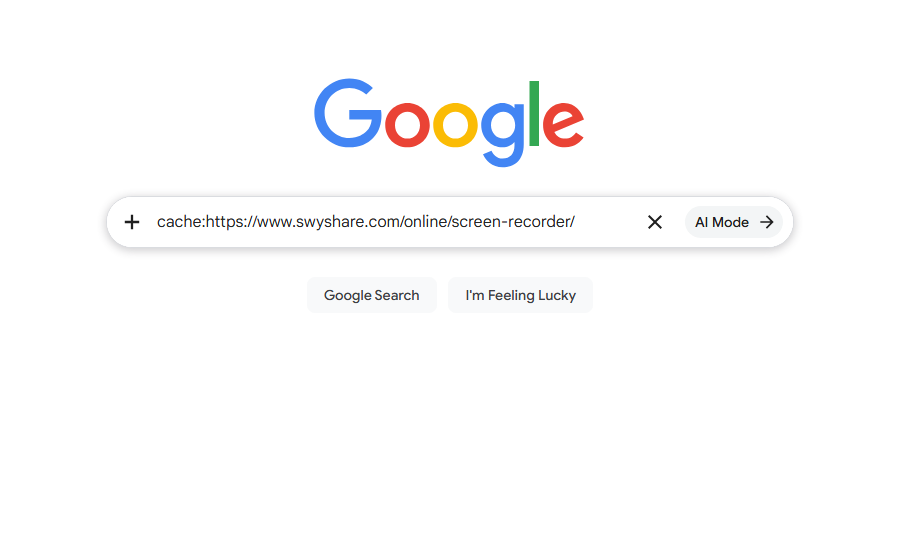
Search engines like Google temporarily store cached versions of webpages. This method is useful for retrieving recently changed or deleted content.
Steps to access cached pages:
- Search for the webpage on Google
- Click the three-dot menu next to the result
- Select “Cached” to view the stored version
Alternatively, type: cache:website-url into the search bar.
Best use cases:
- Viewing recently updated content
- Recovering pages that were just removed
Limitations:
- Only the latest cached version is available
- Cache may expire quickly
4. Use Web Archiver Extension to View Old Versions of Websites
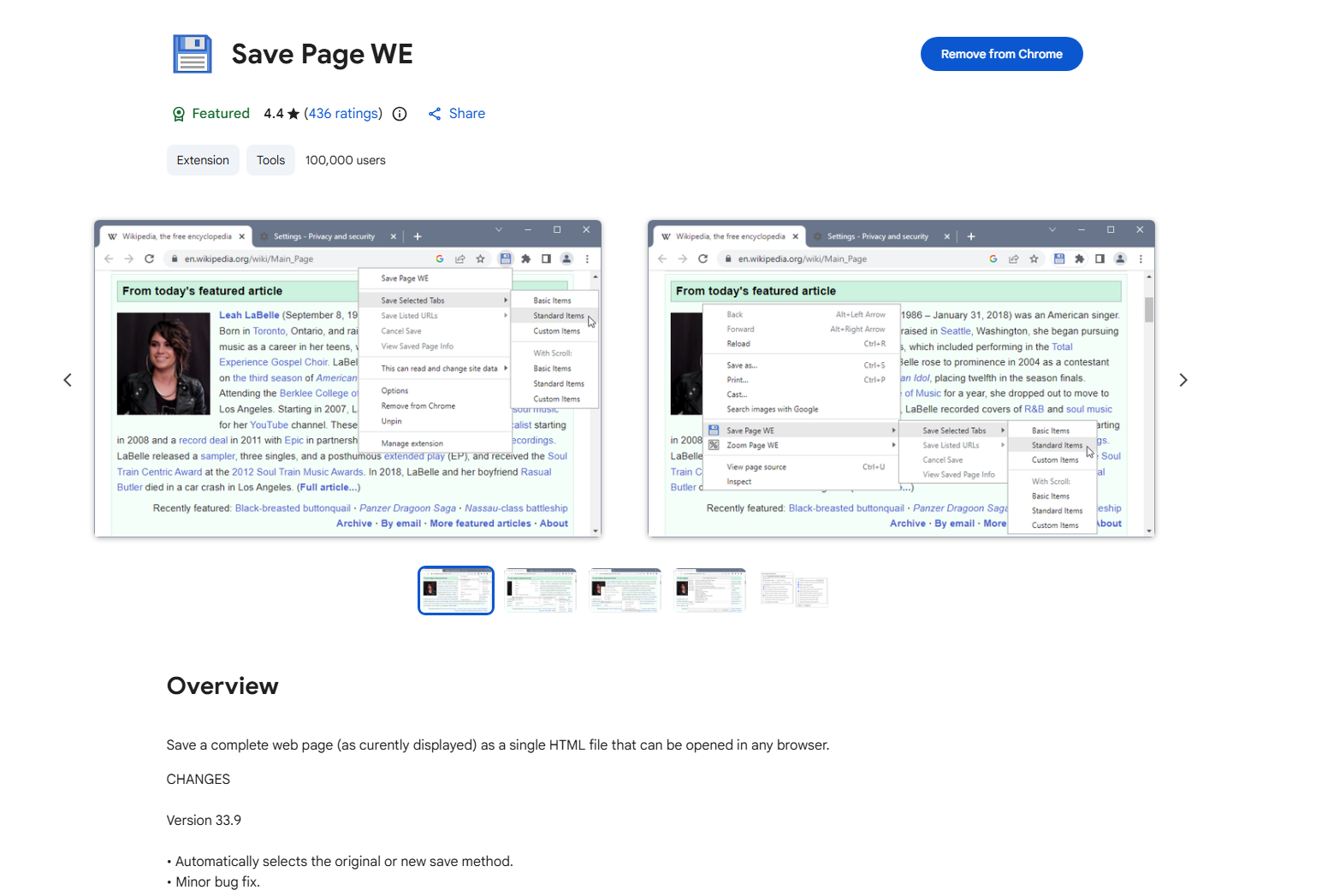
Web archiver extensions are browser add-ons that let you quickly save and revisit webpages while you are browsing. Instead of relying on external archive services, these tools integrate directly into your browser, making it easy to capture a page in just one click.
How they are typically used:
- Install a reliable web archiver extension in your browser.
- Open the webpage you want to save and then click the extension icon.
- Save or archive the tab page for later access.
Popular examples include:
- SingleFile – Captures and stores a complete webpage as a single file so it can be viewed without internet access.
- Save Page WE – Captures full webpages including images and styles for later use in Chrome and Firefox.
- Web Scraper – Allows users to extract and archive structured data from websites.
5. Use Screenshots and Manual Records
If a webpage was never archived, screenshots and manual records can still provide valuable insights into its past versions.
Where to find them:
- Social media posts
- Online forums
- Blog articles or reports
Other options:
- Saved PDFs
- Downloaded HTML files
- Personal notes or documentation
Advantages:
- Useful when no archive exists
- Can capture visual changes
Limitations:
- Not interactive
- Often incomplete
6. Conclusion
Different methods for viewing old versions of websites serve different needs. ArchiveKit is best for high-quality, full-page saving when you want complete control. The Internet Archive Wayback Machine is ideal for exploring historical snapshots, while cached pages are useful for recent updates. Browser extensions make it easy to archive pages quickly, and screenshots or manual records work as a backup when nothing else is available.
In practice, combining these methods gives the best results, since no single tool captures everything perfectly.
However, if you want the most reliable and complete solution, ArchiveKit stands out. It preserves full webpages exactly as they appear, including layout, images, and dynamic content, while also keeping them organized for future use. In a fast-changing web environment, ArchiveKit ensures important pages are always saved and accessible when you need them.