Why Does My Screen Recording Not Have Sound?

Screen recording has become an essential tool for many users, whether they are creating tutorials, capturing online meetings, recording gameplay, saving webinars, or demonstrating software features. However, one common issue many users encounter is screen recordings without sound.
You may successfully record everything that appears on your screen, but when you play back the video, the audio is missing. This can be frustrating, especially if you intended to capture important elements such as system audio, video soundtracks, or voice narration. Without audio, the recording often loses its purpose and usefulness.
In this article, we will explore why your screen recording does not have sound, provide practical solutions to fix the problem.
1. Why Does My Screen Recording Not Have Sound?
If your screen recordings are missing audio, several common factors may be responsible. Below is a short list of the most frequent causes:
- System audio disabled – Screen recorder may not capture audio if system sound is off.
- Microphone muted or wrong – Voice input may be muted, disconnected, or not selected.
- Incorrect audio device – Recorder may be using the wrong speakers or microphone.
- Permission restrictions – OS may block microphone or audio access.
- Audio driver issues – Outdated or corrupted drivers can prevent sound capture.
- Software limitations – Some recorders cannot capture internal audio.
- Temporary bugs – Glitches or outdated software can cause missing audio.
2. How to Resolve Screen Recording Without Sound
If your screen recordings are missing audio, the following troubleshooting steps can help you resolve the problem.
2.1 Enable System Audio Recording
The first step is to verify that system audio recording is enabled in your screen recorder.
Most recording tools allow you to toggle:
- System sound
- Microphone audio
- Both sources
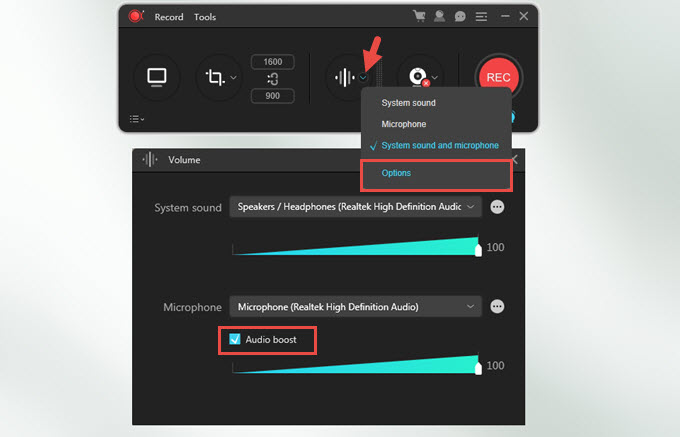
If you want to record audio from videos, music, or games playing on your computer, make sure the system sound option is turned on before starting the recording.
2.2 Check Microphone Settings
If you plan to record narration or commentary, confirm that the microphone is properly configured.
You should:
- Enable microphone recording in the screen recorder
- Select the correct microphone device
- Test the microphone input level
Many recorders display an audio level meter that moves when sound is detected. If the meter does not move, your microphone may not be working.
2.3 Verify System Permissions
Modern operating systems restrict access to audio devices for privacy reasons. If the recording software does not have permission, it cannot record sound.
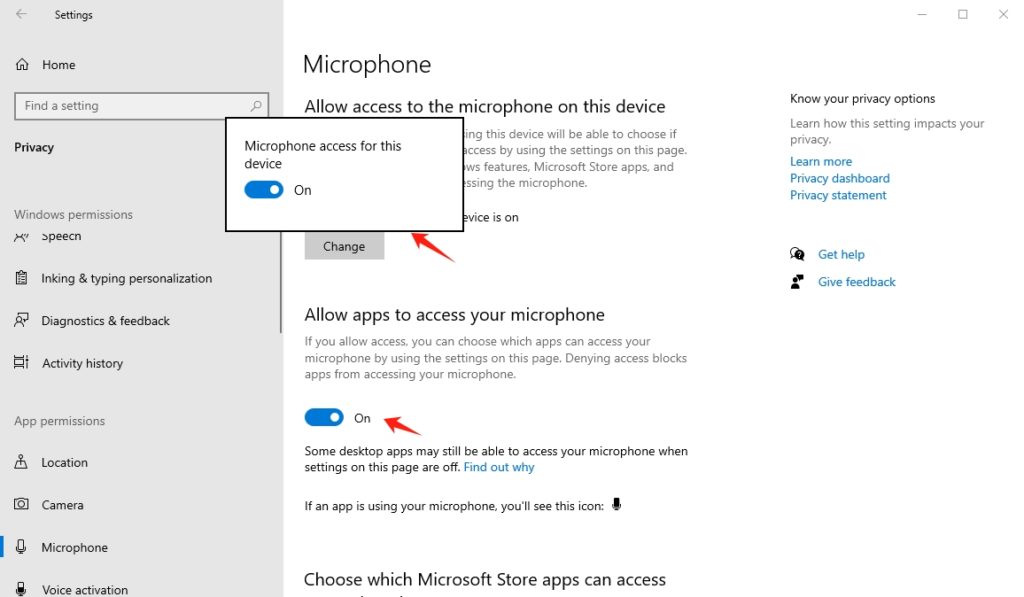
On Windows:
- Open Einstellungen
- Go to Privacy & Security
- Click Microphone
- Enable microphone access for your screen recorder.
On macOS:
- Open System Settings
- Select Privacy & Security
- Click Microphone
- Allow the screen recording application to access your microphone.
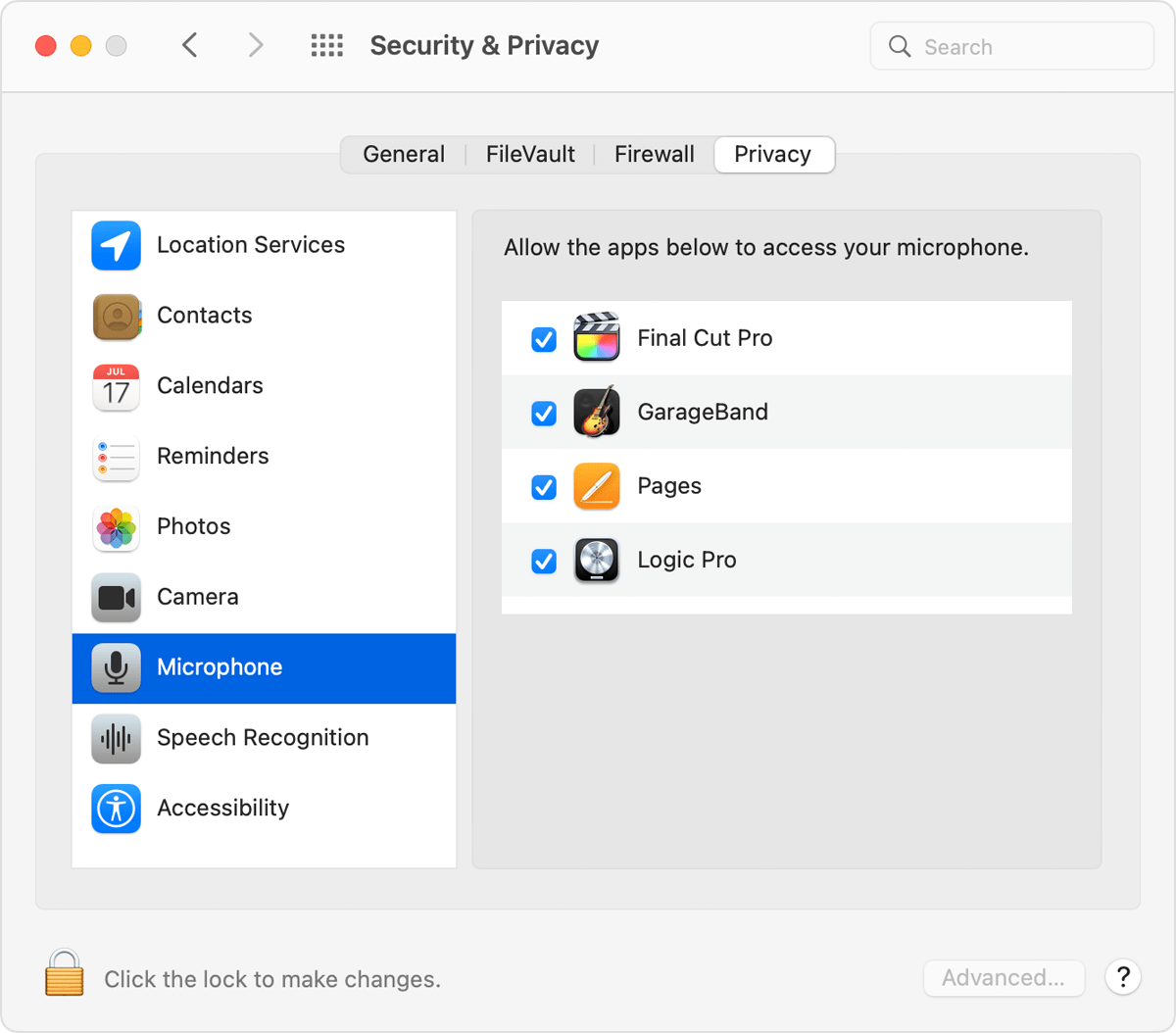
After granting permission, restart the recording software and try again.
2.4 Confirm the Correct Audio Device
If you are using headphones, Bluetooth speakers, or external audio devices, the recorder may be capturing sound from the wrong source.
Check that the recording software is using the same audio device as your system output. For example:
- If sound is playing through headphones, select that device in the recorder.
- If you are using an external microphone, choose it as the input source.
Matching the correct devices ensures the recorder can capture the audio properly.
2.5 Update or Reinstall Audio Drivers
Audio driver problems can also cause recording issues.
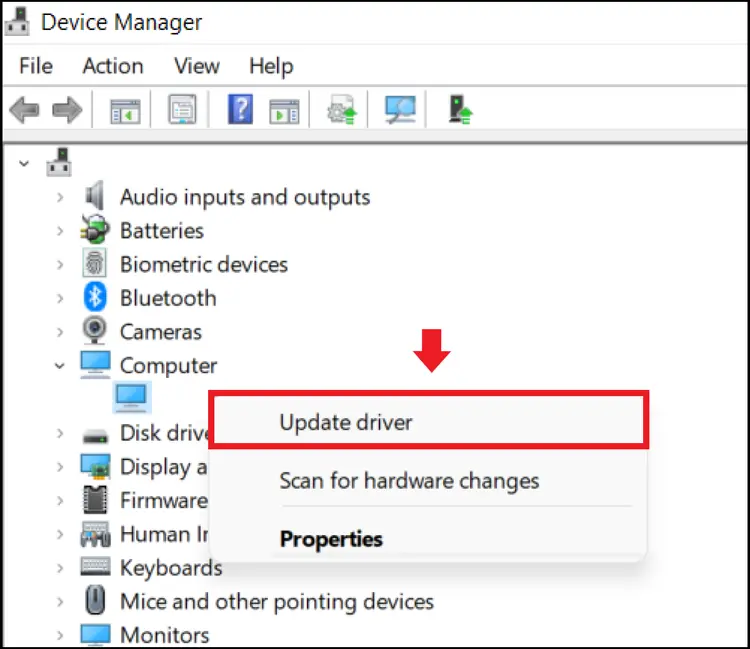
To update drivers on Windows:
- Open Device Manager
- Expand Sound, Video and Game Controllers
- Right-click your audio device
- Select Update Driver
Restart your computer after updating to ensure the changes take effect.
2.6 Restart the Recording Software
Sometimes the problem may be caused by a temporary glitch.
Try the following steps:
- Close the screen recording software
- Restart your computer
- Launch the recorder again
Perform a short test recording to see if the audio is captured.
2.7 Use a More Reliable Screen Recorder
If the problem continues, the issue may be related to the recording software itself. Some built-in tools have limited audio recording capabilities, especially when it comes to capturing internal system sound.
In this case, switching to a dedicated screen recording application can provide a more reliable solution.
3. Bonus: Record Screen Audio in Best Quality with Swyshare Recordit
If you want to ensure your screen recordings always include high-quality audio, Swyshare Recordit is an excellent solution.
Swyshare Recordit is a professional screen recording tool designed to capture both screen activity and audio sources with excellent clarity. It works well for tutorials, presentations, online classes, gameplay recordings, and streaming content.
Key Features of Recordit :
- Capture both system audio and microphone simultaneously
- High-definition video and clear audio for professional results
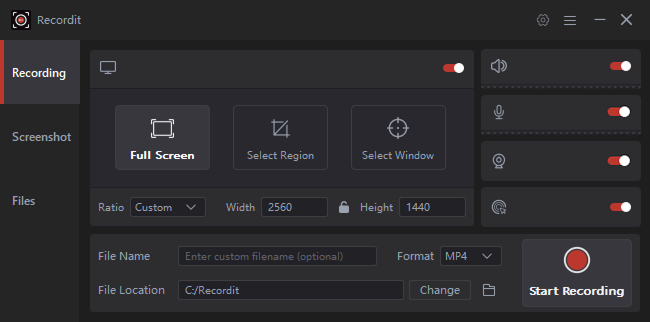
- Multiple recording modes: full screen, selected area, or specific window
- Schedule recording to set start and stop times automatically
- Compatible with both Windows and Mac
How to Record Screen with Audio Using Recordit :
- Download, install and open Swyshare Recordit on your Windows or Mac.
- Open the program and select whether you want to record the full screen or a custom area.
- Turn on System Sound to capture computer audio and enable Microphone if you want to record voice narration.
- Click the Start Recording button and perform the activity you want to capture.
- When finished, stop the recording and save the video file with both video and audio included.
4. Conclusion
Screen recordings without sound can be frustrating, but the problem is usually caused by simple issues such as disabled system audio, muted microphones, incorrect device settings, or missing permissions. By checking your recording settings, verifying audio devices, and updating drivers, you can often resolve the issue quickly.
However, using a reliable and professional screen recorder can prevent these problems from happening in the first place. If you want an easy way to capture high-quality screen recordings with clear audio, Swyshare Recordit is a great choice. Its ability to record both system sound and microphone input ensures that your recordings always include the audio you need, making it an excellent tool for tutorials, presentations, and professional content creation.